Add to Listspace from Slack
Turn Slack messages and notes into items on your boards.
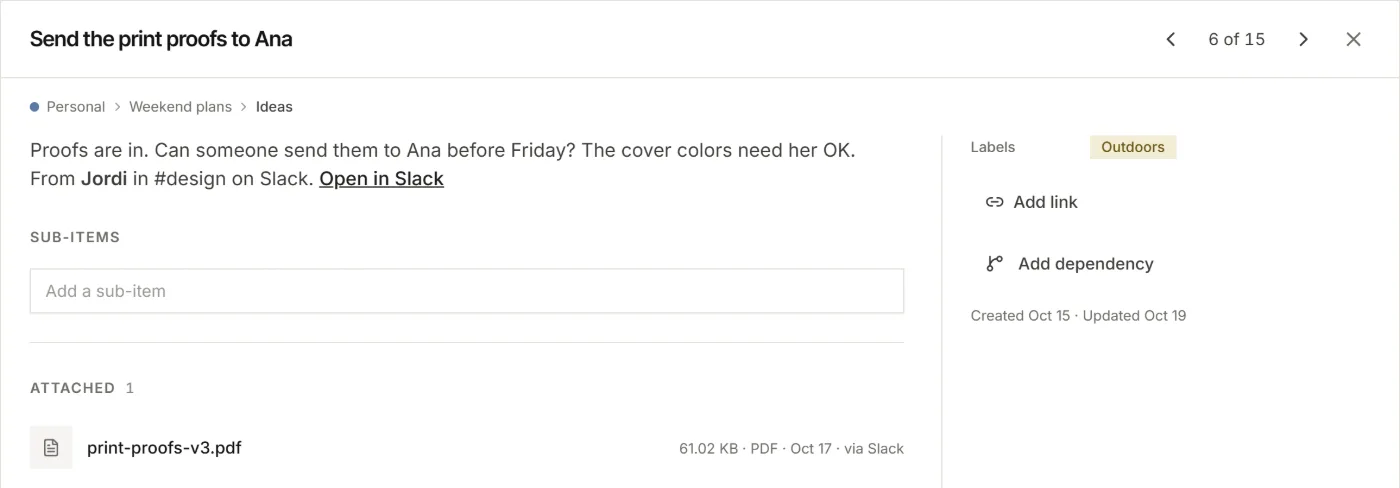
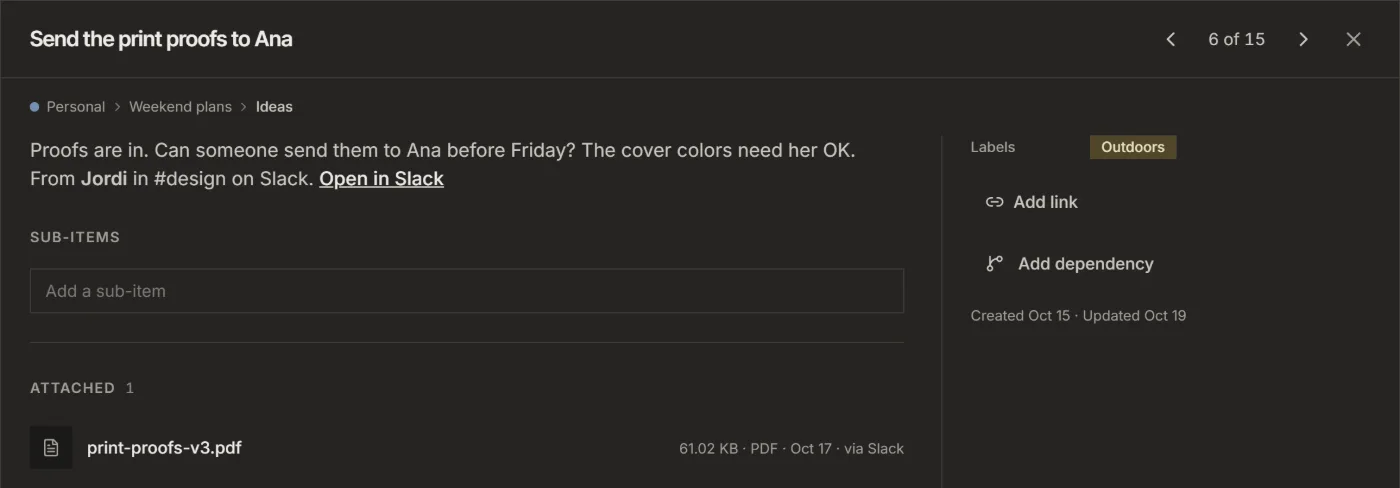
Add a Slack message to Listspace as an item in a few clicks. The item keeps the message, who wrote it, the channel and a link back to Slack. On a board at Act or Full it also keeps the files on the message.
1. Add Listspace to Slack
- In Listspace, open Settings, then Capture and connections.
- Under Slack, click Add to Slack and allow it on Slack's screen. You may need to be allowed to add apps to the workspace.
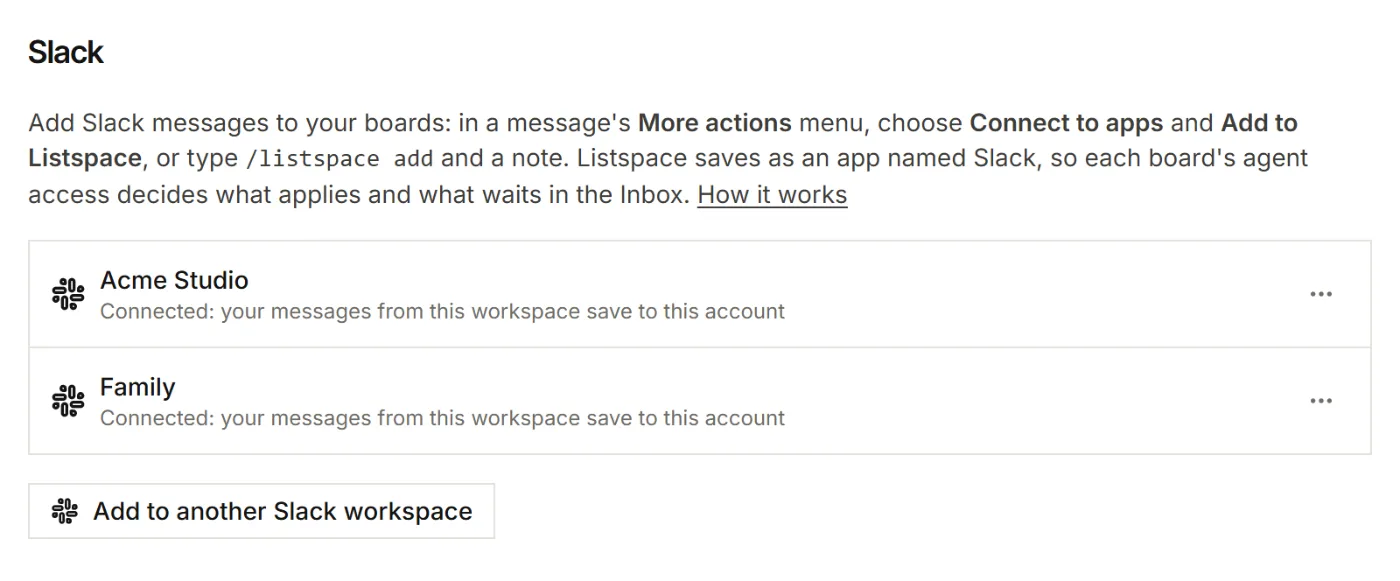
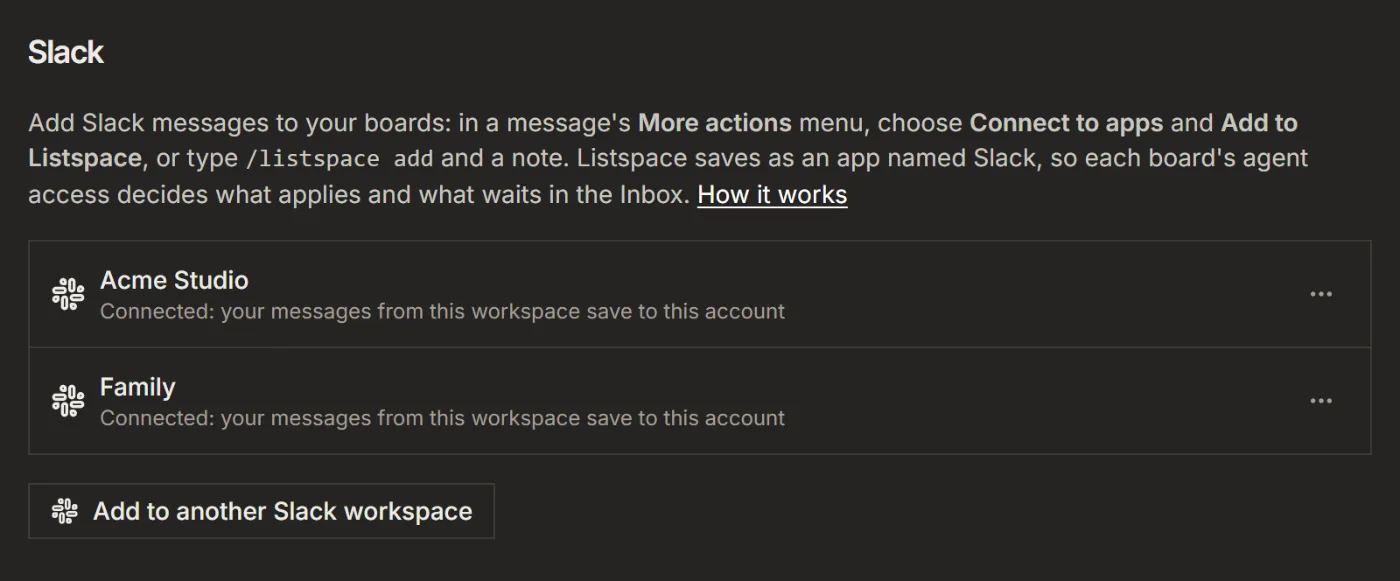
- Slack sends you back to Settings. The workspace now shows under Slack, and your Slack user is connected to your Listspace account.
2. Connect your account the first time
Someone else in the workspace already added Listspace? Then connect your own account once:
- In Slack, type
/listspace addin any channel, or use Add to Listspace on a message./listspaceon its own only shows the commands. - Click Connect your Listspace account, and sign in to Listspace if asked.
- Check the workspace and your Slack name, then click Connect.
You do this once per workspace.
3. Add a message
- Hover over the message in Slack.
- Click More actions (the three dots) in the menu that appears on the message.
- Choose Connect to apps, then Add to Listspace.
- In the window, check the title and the note.
- Under Save to, pick a board and then its list. Or keep Unsorted to sort it later.
- Click Save.
Slack shows a short message, only to you, with a link to the new item.
Quick notes with /listspace add
- Type
/listspace add Call the printer about the proofsto add the text to Unsorted, to sort later. - Type
/listspace addon its own to open the same window as for a message, and pick the board and list. - Type
/listspace helpto see the commands.
A note added with /listspace add has no files: Slack sends only the command's text. To keep a file, post it as a message, then use More actions > Connect to apps > Add to Listspace on it.
Files on a message
On a board at Act or Full, the files on the message are attached to the new item, at most 8 MB each and up to 10 per message. They count toward your storage and get the same virus check as any upload.
- Files need a board. Unsorted cannot hold files, so for a message with files, pick a board in the window.
- Private channels: invite Listspace first. Type
/invite @Listspacein the channel. - Public channels: Listspace joins the channel to read the files the first time you add a file from there.
- Direct messages: the message can be added, its files cannot.
- Capture: the item is added without its files.
- When the item waits in the board's Inbox, its files are left out.
Slack's message names every file that was left out, and why. Added Listspace to the workspace before files were supported? Click Add to Slack in Settings once more to allow them.
Agent access applies
Listspace adds items as an app named Slack in your account, the same way your AI does. It shows under Connected apps in Settings, and every item it adds shows Slack in the item's history.
Each board's agent access decides what happens. At Act or Full a new item is added right away, with its files. At Capture it is added right away to a list for ideas or info, and waits in the board's Inbox for your OK in any other list. At Suggest it always waits in the Inbox, and at Read only Slack cannot add items there. When you do not pick a list, Listspace uses the board's list for ideas, or the first list that is not a Done list when the board has none. Unsorted works at every level except Read only.
What Listspace reads
Listspace reads only the messages you add, the name of the person who wrote them and the files on those messages. It does not read channels or other messages.
Disconnect
- In Settings, under Capture and connections and Slack, open the ... menu of a workspace and choose Disconnect. Your Slack user there stops adding to your account. Items already added stay.
- To remove the app from the workspace for everyone, a Slack admin removes it in Slack, under Apps. Listspace then forgets the workspace, and it disappears from Settings for everyone who had connected it.