Get a ping when your AI needs your OK
Notifications on your phone or computer, or in Telegram, when something waits for you.
When your AI works at a level that needs your OK, its suggestions wait in the Inbox on the board. A notification tells you, also while Listspace is closed, so the work does not stall.
1. Turn notifications on for this device
- Open Settings, then Notifications.
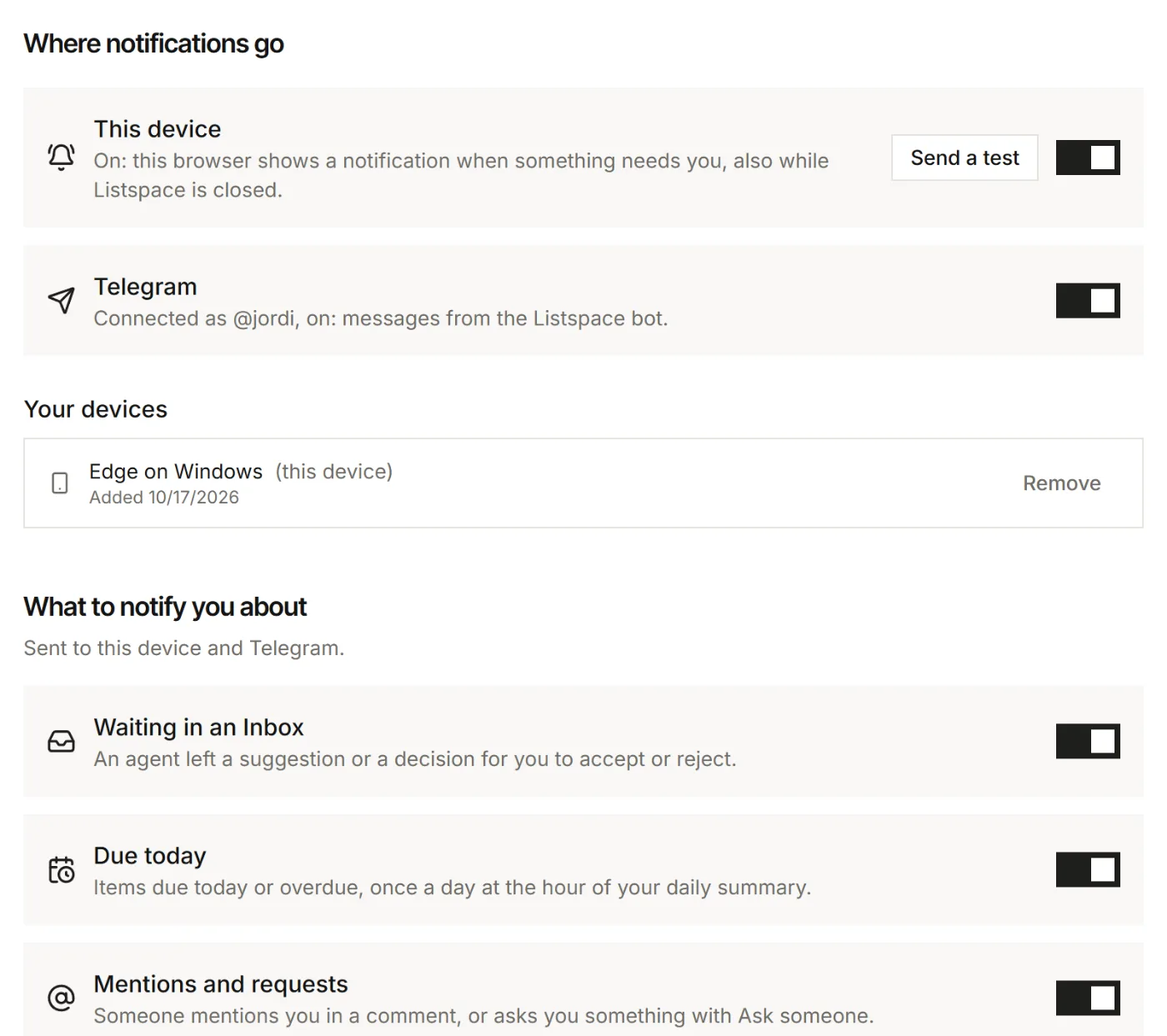
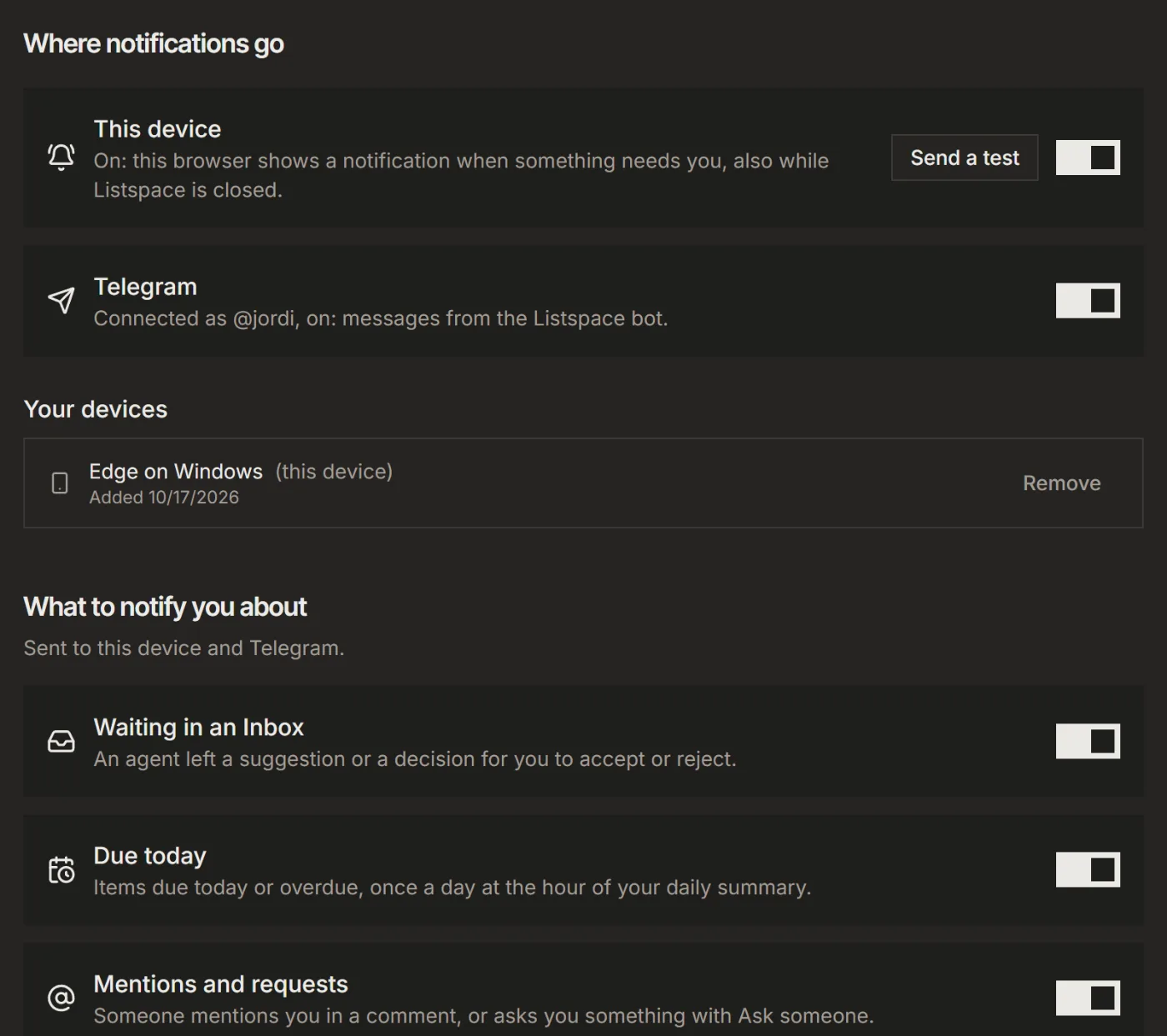
- Under Where notifications go, switch on This device. Only then does your browser ask for permission: allow it.
- Click Send a test to see one right away.
Do this on each device you want pings on: the switch is per device. Your devices lists them, with Remove to stop one.
2. Choose what comes
Under What to notify you about, these hold for every place that is on, your devices and Telegram:
- Waiting in an Inbox: an agent left a suggestion or a decision for you.
- Due today: items due today or overdue, once a day.
- Mentions and requests: someone mentions you, asks you something, or answers what you asked.
Several changes on one board within a few minutes come as one notification. Click it to open the board or the item.
3. Add Telegram, if you like
- Connect Telegram in Settings, then Capture and connections, under Telegram.
- The same notifications then also come as messages from the Listspace bot. Turn them off with the Telegram switch under Where notifications go.
4. Mute a board
- On the board, open the ⋯ menu, then Board settings.
- Under Agents and notifications, click Notifications to switch it to Muted.
A muted board sends no Inbox or due notifications, in the browser or in Telegram. Mentions and requests to you still come through.
If nothing shows
- Brave blocks notifications from websites by default. Turn on Use Google services for push messaging in
brave://settings/privacy, restart Brave, then switch this on. Settings shows this hint in Brave. - Windows: in Windows Settings > System > Notifications, choose your browser and turn on Show notification banners and Show notifications in notification center. Also turn off Do not disturb.
- iPhone and iPad need iOS 16.4 or later and Listspace on your Home Screen: in Safari, tap Share, then Add to Home Screen, and turn notifications on from there.
- Blocked notifications for Listspace before? Allow them again in your browser's site settings (the icon left of the address), then switch them on.
For your AI, this guide as markdown: listspace.app/guides/get-a-ping-when-your-ai-needs-you.md