Move from Trello, Notion, Asana or Jira
Export a board from the app you use now and upload the file: lists, items and more come along.
Listspace makes a new board from an export of the app you use now. Nothing in that app changes, so you can try it side by side.
1. Open the import
- Click your picture at the top right and choose Import. The page opens on Import from Trello.
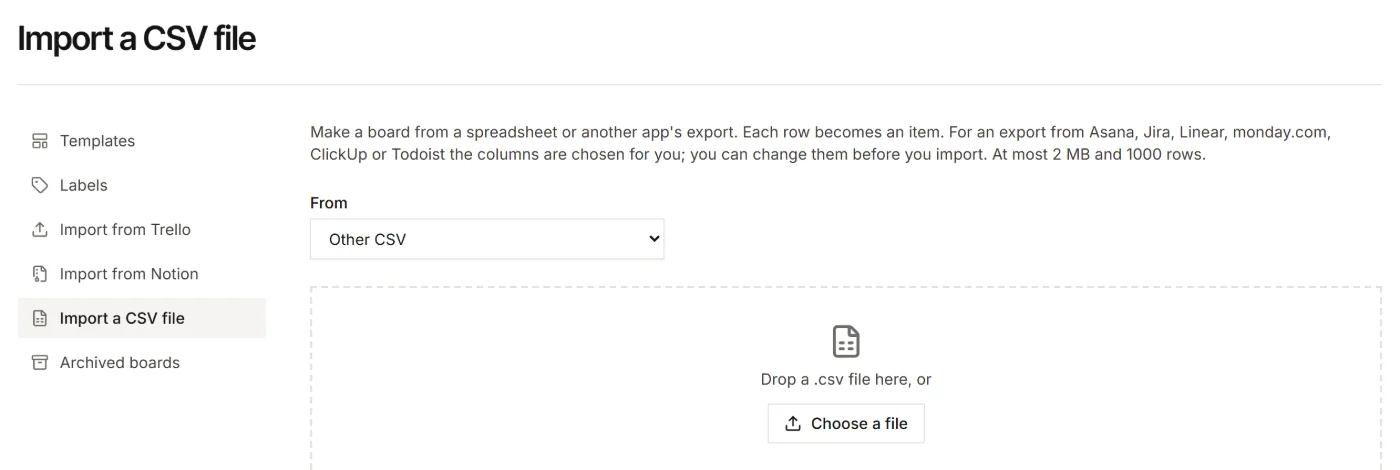
- The menu on that page also has Import from Notion, Import from Obsidian and Import a CSV file. Pick the one for your app: Asana, Jira, Linear, monday.com, ClickUp and Todoist all go through Import a CSV file.
2. From Trello
- In Trello, open the board menu (top right), then Print, export and share, then Export as JSON.
- In Listspace, upload the file (up to 50 MB) and click Import board, then Open board.
Lists, items, labels, checklists, comments, custom fields and files come over. Files on a private Trello board cannot be downloaded, so they come in as links.
3. From Notion
- In Notion, open the database as a full page, choose ⋯, then Export. Pick Markdown & CSV and turn on Include subpages.
- In Import from Notion, upload the zip as it is.
- On the Properties step, choose which property gives the lists (Lists from), the due date and the done state, and what every other property becomes: labels, a field, a line in the description, or left out.
- Check the Preview, then click Import (the button says how many items).
Each page becomes an item with its text as the description, and a page inside a page becomes a sub-item. Images and files in the pages are not imported; the summary names them.
4. From Obsidian
- Zip your vault folder, or use one note's .md file as it is. To find the folder, right-click a note in Obsidian and choose the option that shows it in File Explorer or Finder, then go up to the folder that holds .obsidian. On Windows, right-click the folder and choose Send to > Compressed (zipped) folder; on a Mac, right-click it and choose Compress. The zip can be at most 100 MB, and one project folder from the vault works too.
- In Import from Obsidian, upload the file.
- Each top-level folder becomes a list, and each note a document in it, followed by its tasks as items that say which note and heading they came from. A board of the Kanban plugin comes with its own lists. Under Becomes, choose per note Document and tasks, Tasks only or Leave out.
- Check the Preview, then click Import (the button says how many items).
Due dates, tags and done ticks come over, a task indented under a task becomes a sub-item, and images and files a note shows are attached to the item or document they are in. Settings, empty notes and files no imported item shows are left out; the preview says how many.
5. From Asana, Jira and other apps (CSV)
- Export a CSV in your app. In Asana: the menu next to the project name, Export, then CSV. In Jira: Export, then Export Excel CSV (current fields). Import a CSV file shows the steps for each app under From.
- Upload the file (at most 2 MB and 1000 rows). Choose your app under From, or let the import find it from the header row.
- Check the columns: which one is the list, the title, the description, the due date and the labels. More, such as the start date or priority, are under More columns.
- Check the Preview, then click Import (the button says how many items).
Subtasks become sub-items of their parent. The assignee becomes a line in the description.
Good to know
- Fields count toward your plan: 3 per board on Free, 50 on Pro. What does not fit is named in the summary.
- The new board lands in the space you are in.
- Next: connect your AI and let it keep the board up to date.
For your AI, this guide as markdown: listspace.app/guides/move-from-trello-notion-asana-or-jira.md