Plan a timeline and print it as a poster
Dates, dependencies, the critical path and a baseline on one timeline, printed for the wall.
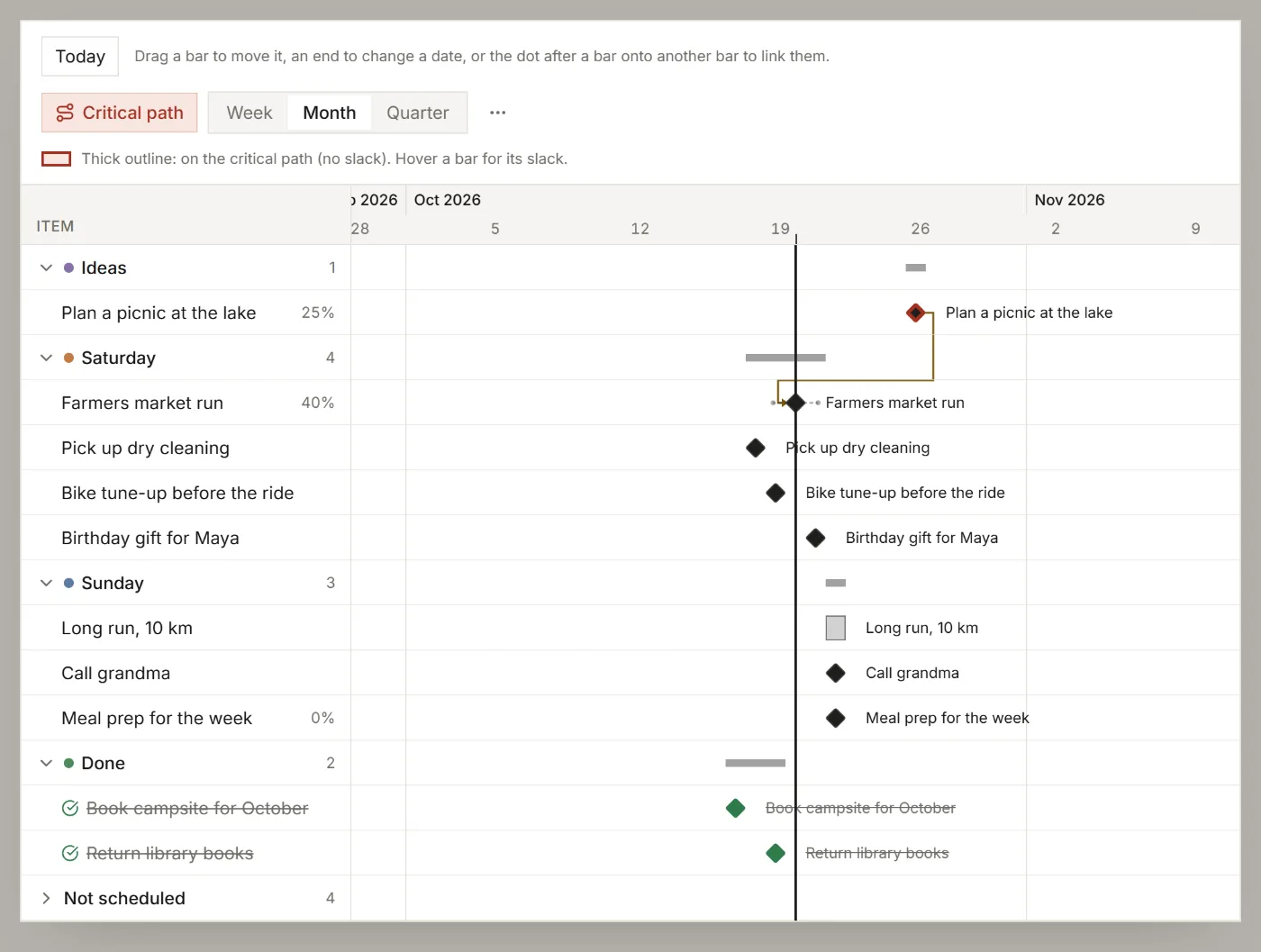
The timeline shows each item with dates as a bar from its start date to its due date. Link the items that wait on each other, and Listspace shows which chain sets the end date and how the plan moved since you saved it.
1. Open the timeline
- On the board, pick Timeline in the view switcher at the top. Or press Ctrl+K (Cmd+K on a Mac) and choose Switch view: Timeline.
- Give items a start and a due date. Drag a bar to move both dates, or drag an end to change one. Items without dates wait under Not scheduled.
- Use Week, Month and Quarter to zoom.
2. Link items that depend on each other
- Hover over a bar and drag the small dot after it onto another bar. The second item now waits for the first (Finish to start).
- Click an arrow to change its kind (Start to start, Finish to finish) or to remove it.
You can also link items in the item window, under Depends on. An arrow turns amber when the dates break the link; hover over it to read why.
3. Show the critical path (Pro and Team)
- Click Critical path next to the zoom.
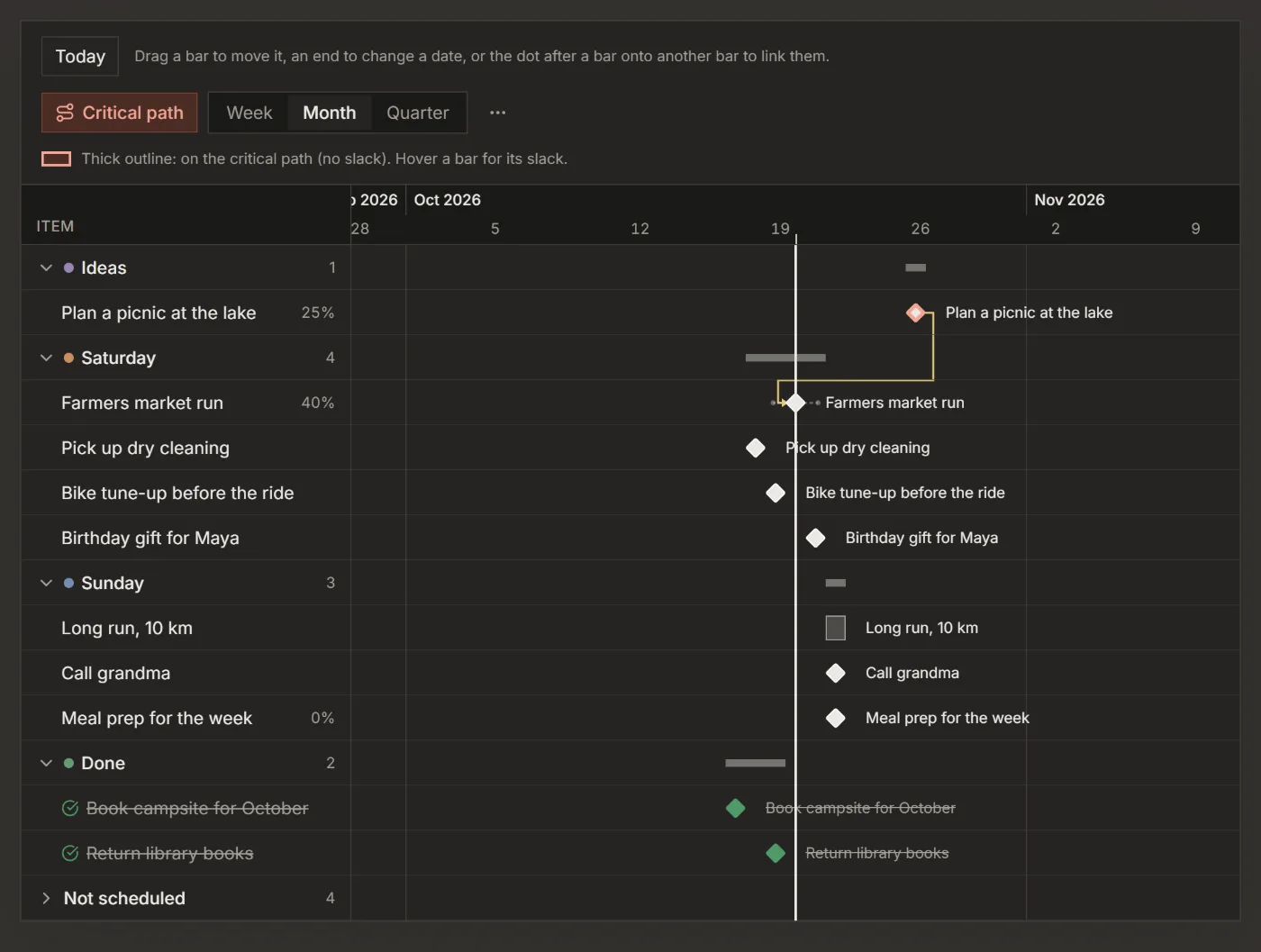
- The chain of items that sets the end date gets a thick outline. Hover over any bar to see its slack: the days it can slip before the end date moves.
4. Save a baseline (Pro and Team)
- In the timeline's ⋯ menu, choose Save baseline, give it a name (or keep today's date) and click Save.
- A thin bar under each item now shows its baseline dates; hover over a bar to see how many days it moved.
- Compare with, in the same menu, picks another baseline, or none. A board keeps up to 10.
5. Print it as a poster
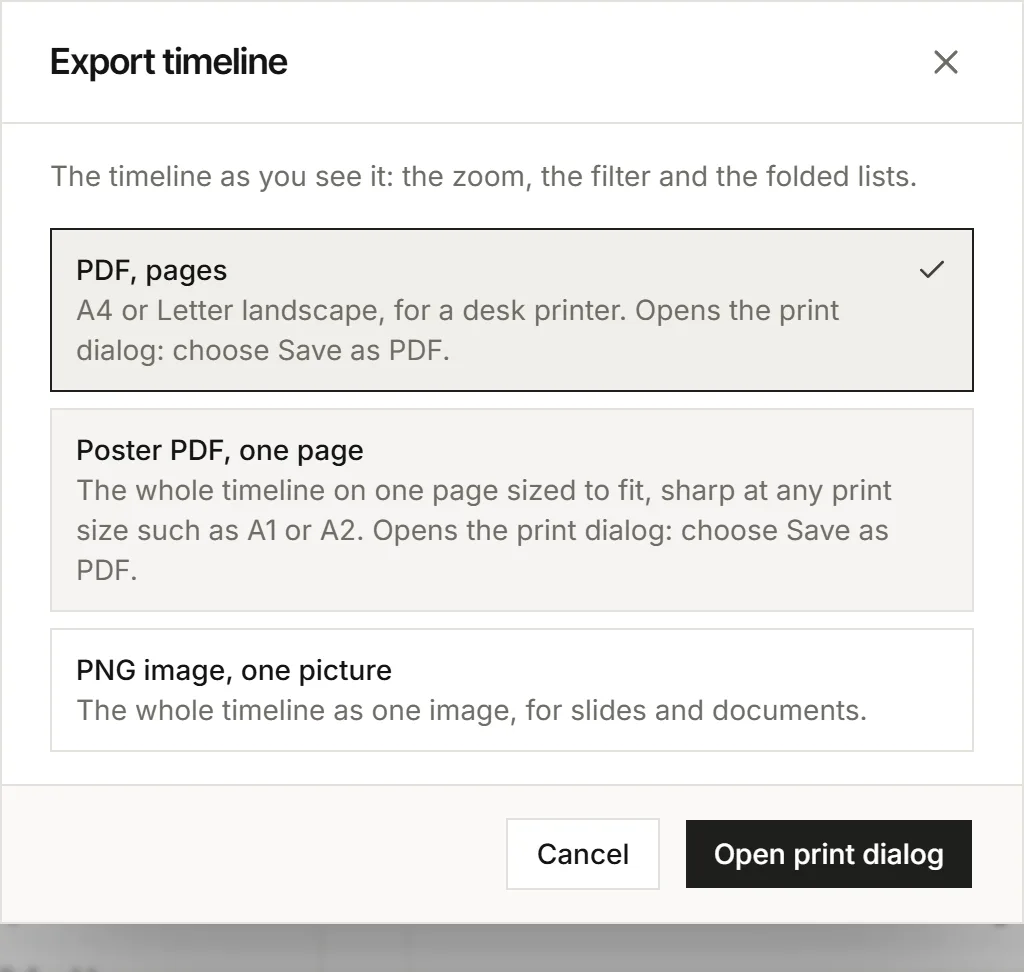
- In the timeline's ⋯ menu, choose Export....
- Pick Poster PDF, one page: the whole timeline on one page, sharp at any print size such as A1 or A2.
- Click Open print dialog and choose Save as PDF.
PDF, pages gives landscape pages for a desk printer, and PNG image, one picture an image for slides, at 1x, 2x or 4x. The export keeps what you see: the zoom, the filter, the arrows, the critical path and the baseline you compare with.
For your AI, this guide as markdown: listspace.app/guides/plan-a-timeline-and-print-a-poster.md