Draw a diagram with Mermaid
A flowchart, a sequence or a database layout from a few lines of text, drawn right in the item.
Mermaid turns a few lines of text into a diagram: a flowchart, a sequence of steps, a database layout and more. In Listspace you write that text in a code block, and every read view draws it. Your AI can write one too, since it is only text.
1. Add the diagram
- Open an item or a document and choose Edit.
- Type three backticks and the word mermaid, then press Enter. You get a code block that is already set to Mermaid.
- Or add a code block with the Code block button, click in it and pick Mermaid diagram under Language.
- Write the diagram, for example a first line with flowchart LR and a second with A --> B, then choose Save changes.
The editor keeps showing the code, so you can change it. Pick another language under Language and the block shows as code again.
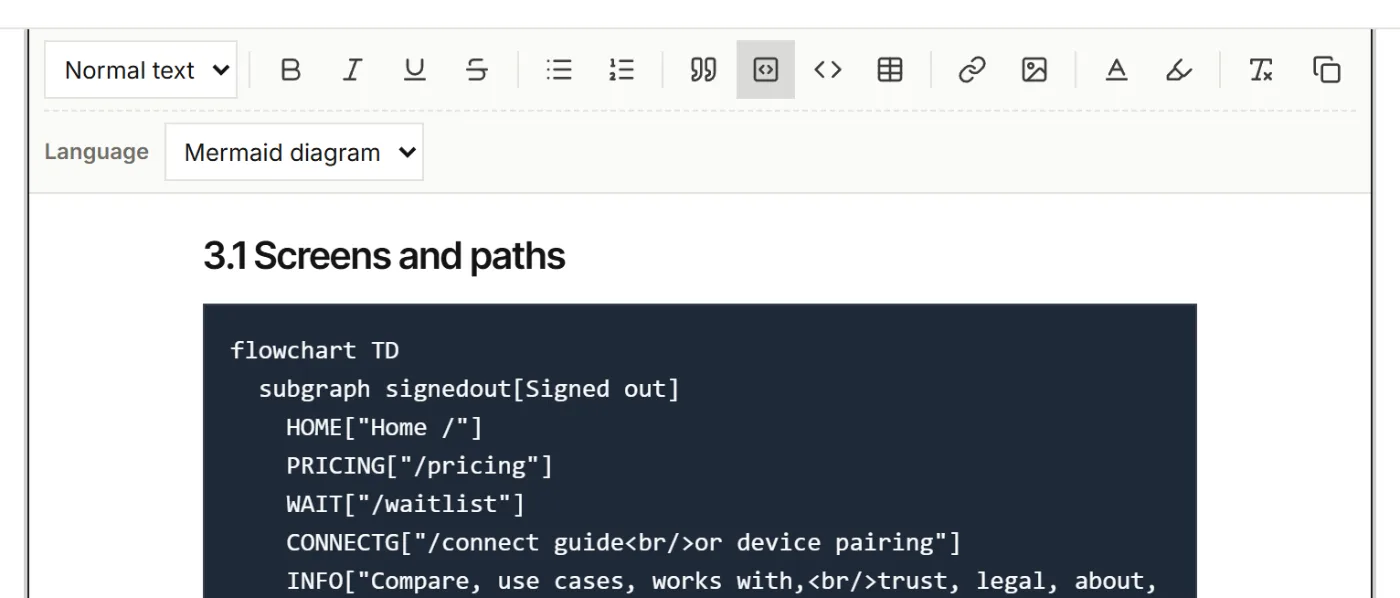
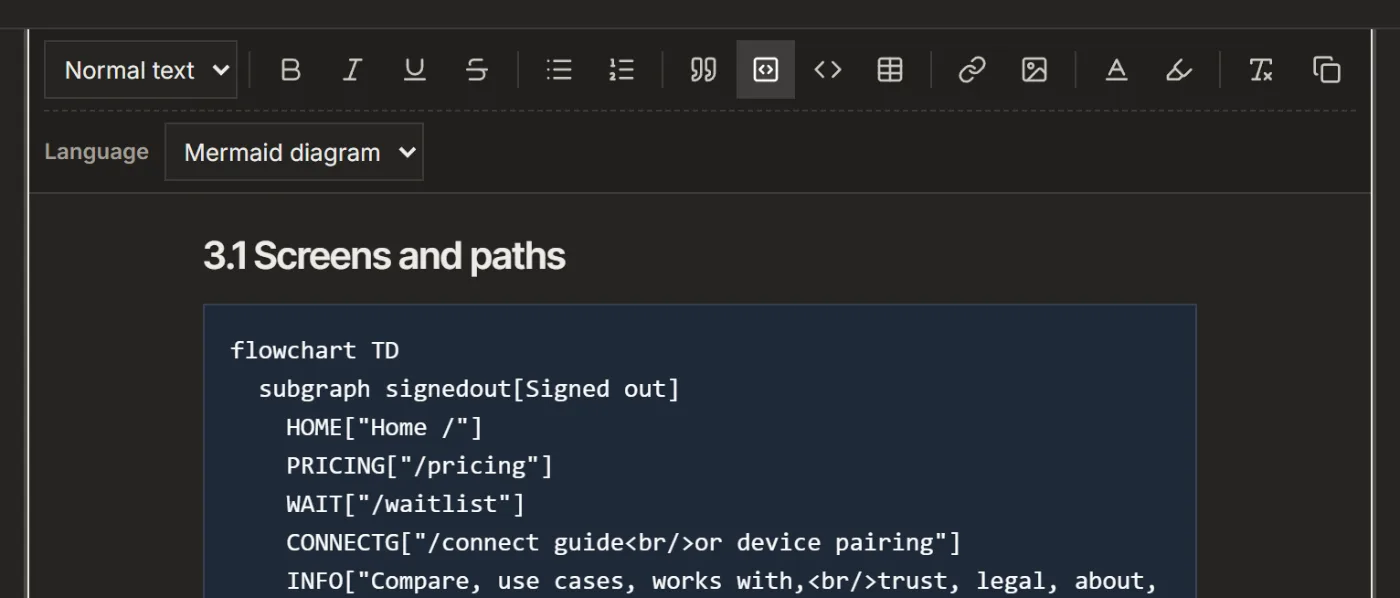
2. See it drawn
Leave edit mode, or open the item again. The code block now shows as its diagram. This works in an item, a document, a comment and on a shared board.
A diagram that cannot be drawn, for example because of a typo, stays as code with the note Diagram could not be drawn, so nothing gets lost. Fix the code and save again.
3. Full screen, download and copy
Hover over a diagram and three buttons show in its corner:
- Full screen opens the diagram over the whole window. Zoom with the buttons, with Ctrl and the mouse wheel, or with + and -. Drag it, or use the arrow keys, to move it. Fit shows all of it and 100% its real size. Escape closes it.
- Download saves it as an SVG image or a PNG image, for slides or another document.
- Copy source copies the Mermaid code.
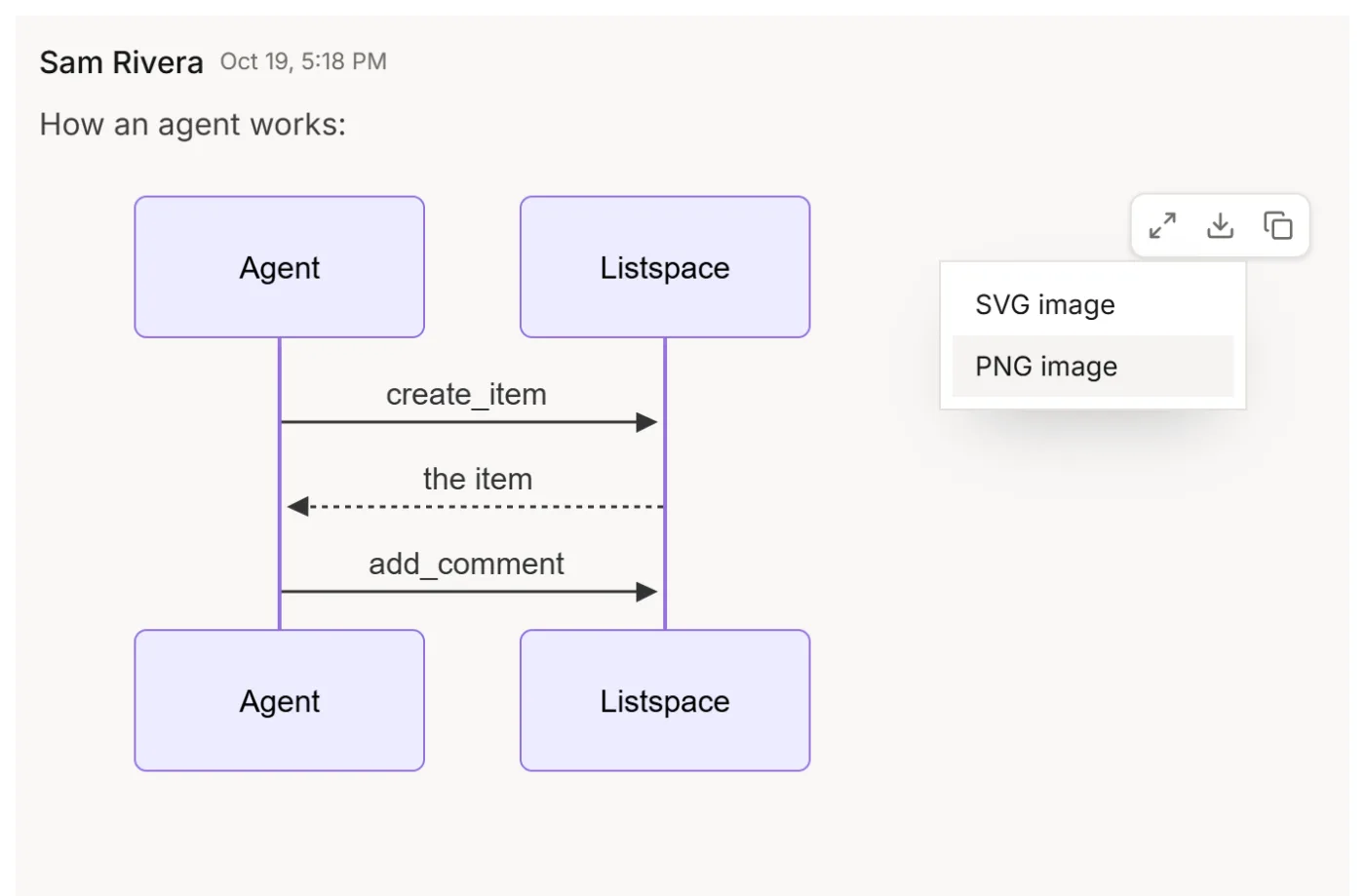
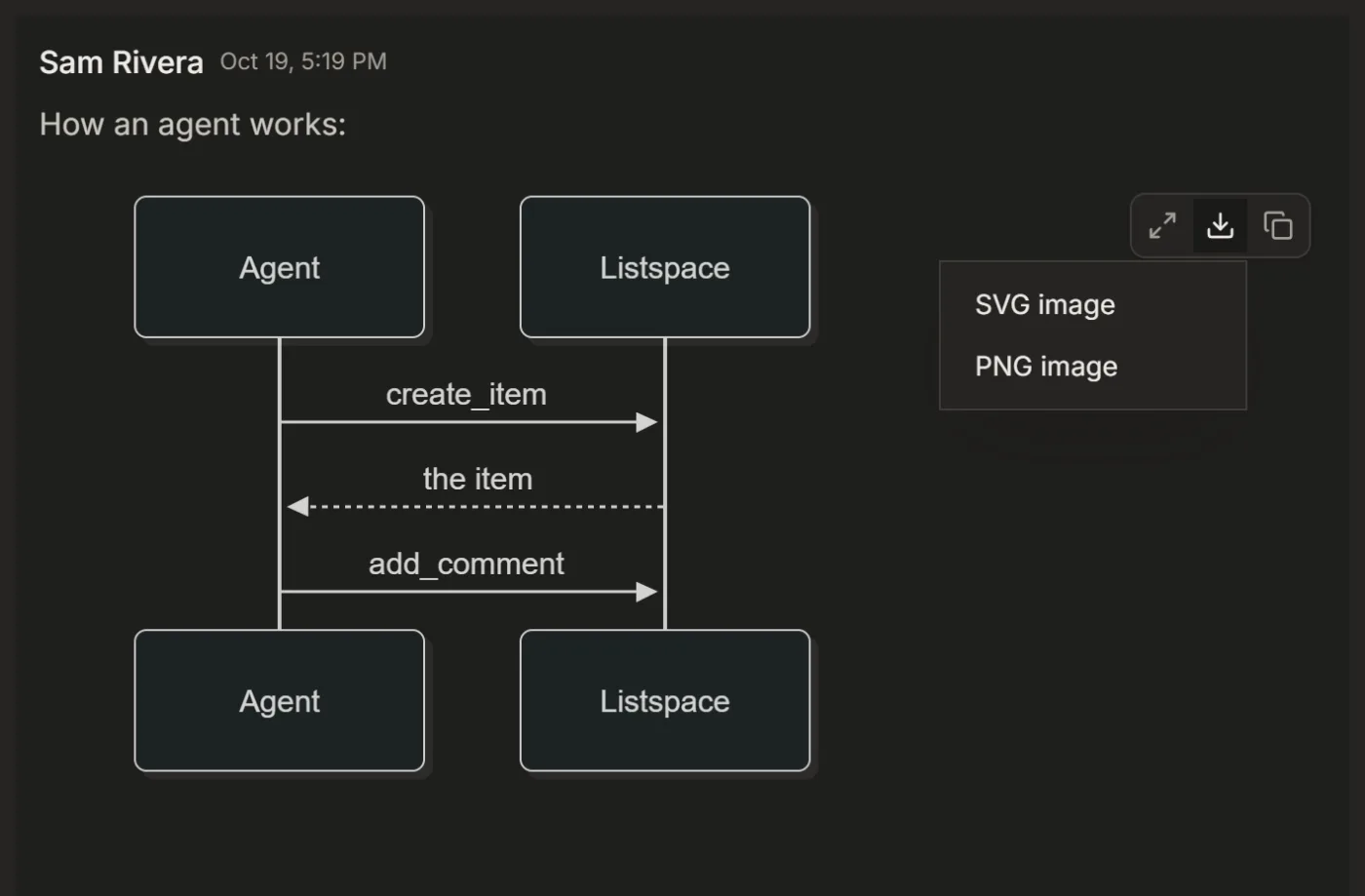
4. Print it or put it in Word
- Open the item and choose More at the bottom of its window.
- Choose Print or save as PDF: the diagrams are printed as pictures. In your browser's print window, choose Save as PDF to keep a file.
- Or choose Word (.docx): the diagrams go into the file as pictures, in place of their code.
Good to know
- An attached .mmd or .mermaid file opens as its diagram in the file viewer, with View source for the code.
- Ask your AI for one: "Draw the signup flow as a Mermaid diagram in the item Signup". It writes the code block, and Listspace draws it.
For your AI, this guide as markdown: listspace.app/guides/draw-a-diagram-with-mermaid.md