Invite a guest to one board
Work on one board with someone else: pick View, Comment or Edit, and set an end date if you like.
A guest sees one board and nothing else of yours. A guest can be anyone: a client, a colleague, your partner or a fellow student. Guests need a free Listspace account, not a paid seat.
1. Invite a guest
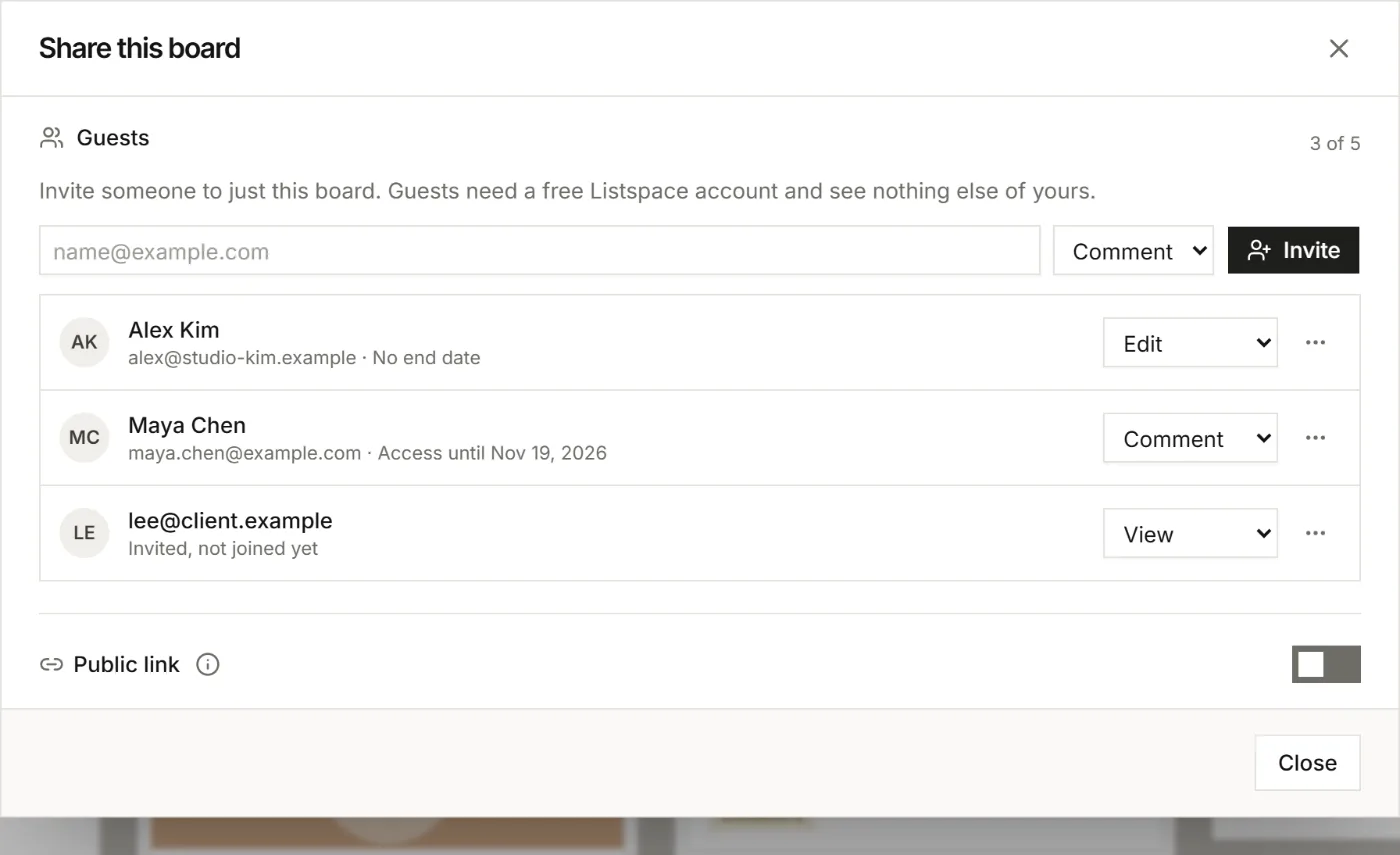
- Open the board and choose Share.
- Under Guests, type the email address and pick a role: View, Comment or Edit.
- Choose Invite. Listspace emails the invite.
Someone without an account can make one from the invite. The guest then finds the board under Shared with you on the dashboard.
2. Pick the right role
- View: sees the board, its items, comments and files.
- Comment: sees everything and adds comments, also on passages of a document. Can propose a change to a decision, which waits in your Inbox.
- Edit: adds, changes and moves items and lists, checklists and labels, and adds files. Edit needs Pro.
No guest can delete the board, change its sharing or its agent access, use its Inbox, or invite anyone else.
3. Change or end access
- In Share, change a guest's role in the guest's row at any time.
- Open the guest's ⋯ menu and choose Access until to end the access on a date. The guest gets an email 7 days before.
- Remove guest in the same menu ends the access at once. What the guest added stays on the board.
Send invite again in that menu emails a new link to someone who has not joined yet.
How many guests
On Free a board can have 1 guest, who can view or comment. On Pro a board can have up to 5 guests with any role, and invites count as guests. Freelancers who each have Pro can invite each other this way, at no extra cost.
Good to know
- A guest's own AI sees the board too, within the guest's role and the board's agent access level. With View it only reads; with Comment it only comments.
- To show a board to anyone with a link, read-only and without an account, use Public link in the same window. See Run a client project with your AI and share it read-only.
- @mention a guest in a comment, or ask a guest something that needs an answer. See Mention people and ask them something.
For your AI, this guide as markdown: listspace.app/guides/invite-a-guest-to-one-board.md