Write a document and collect comments on it
A spec or a brief on the board: comments on passages, every version kept, any version back.
A document is a longer text on the board, such as a spec, a brief or meeting notes. It keeps a version each time it is saved, and people can comment on the exact passage they mean.
1. Make a document
- Choose Add at the bottom of a list, type a title and press Enter.
- Open the item, choose More at the bottom of its window, then Make it a document.
- Choose Edit, write the text and choose Save changes. Headings, lists, tables, code and images all work.
Make it an item in the same menu turns it back, and its versions are kept. Your AI can write and update documents too.
2. Comment on a passage
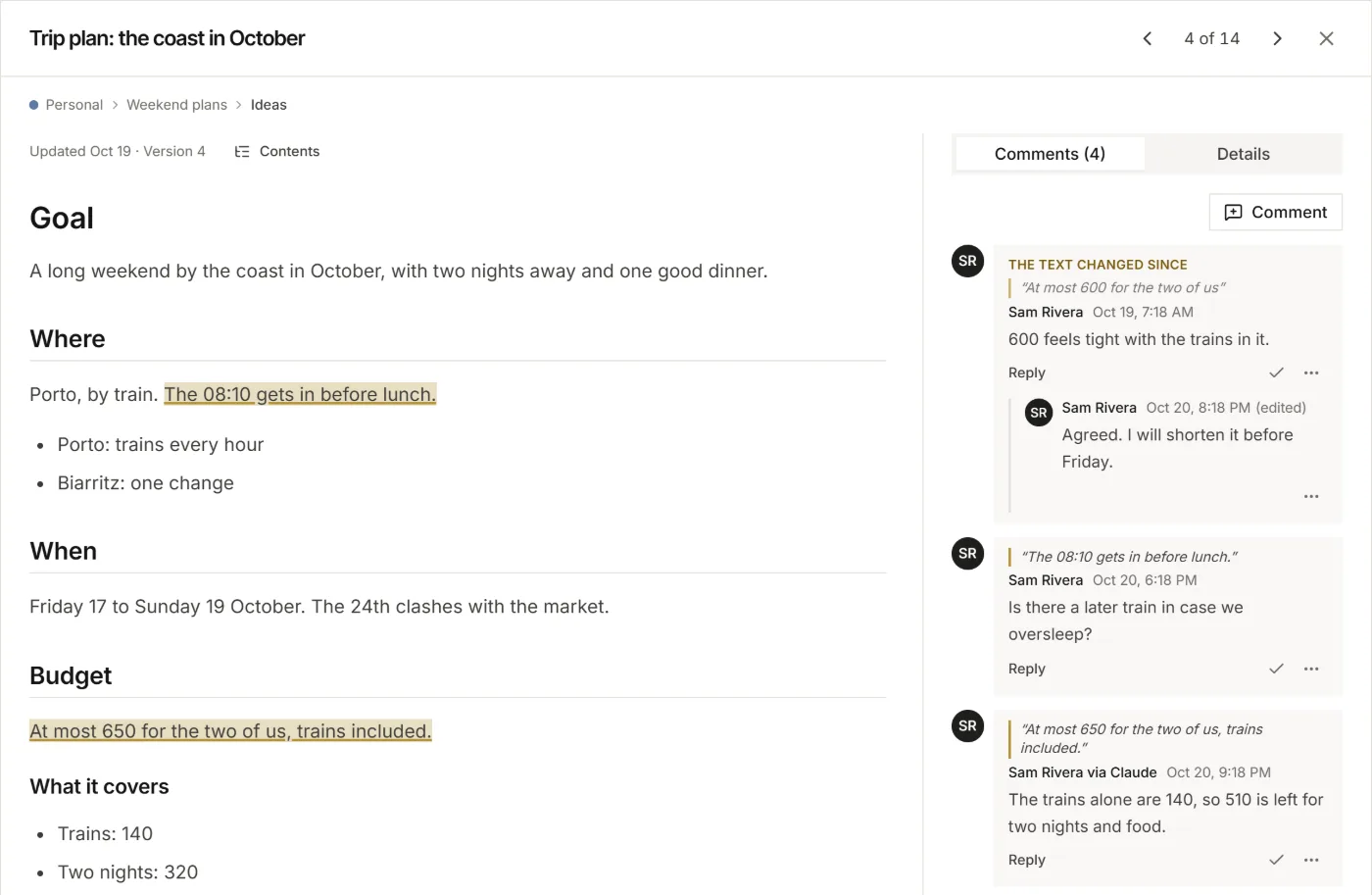
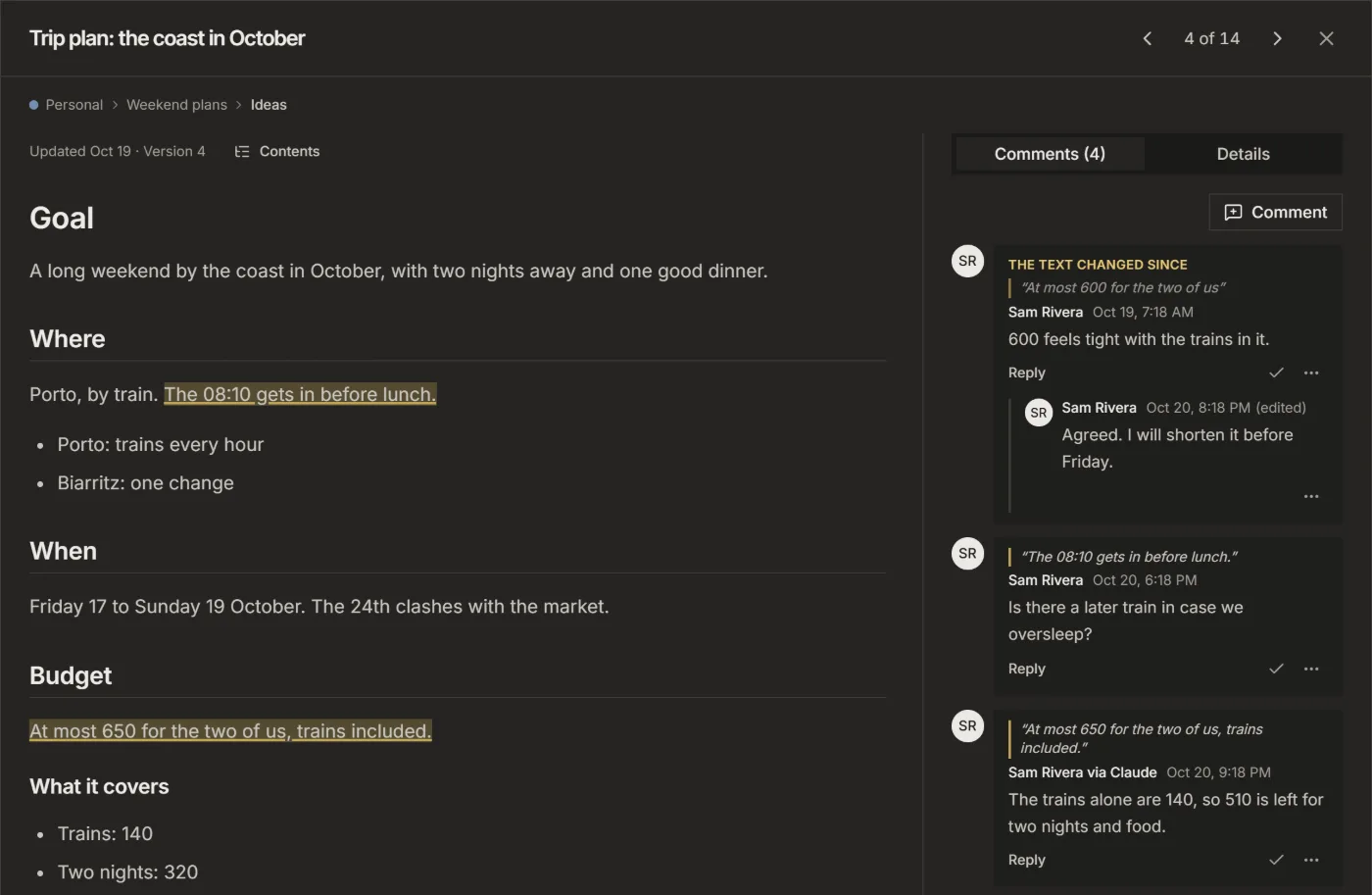
The comments of a document sit in the Comments column beside its text.
- Select the words you mean in the text.
- Press Quote selection under the comment box at the bottom of the column. The box shows the quoted passage.
- Write your comment and press Comment. The passage is marked in the text.
To comment on the whole document, write in the box without quoting anything. Click a marked passage to find its comment, or a comment's quote to find its passage.
3. Resolve what is done
- When a comment is dealt with, press Resolve (the tick).
- Resolved comments are hidden. Show resolved brings them back.
When the text changes so a passage is gone, its comment stays, with "The text changed since" and the passage as it was.
4. Compare and restore versions
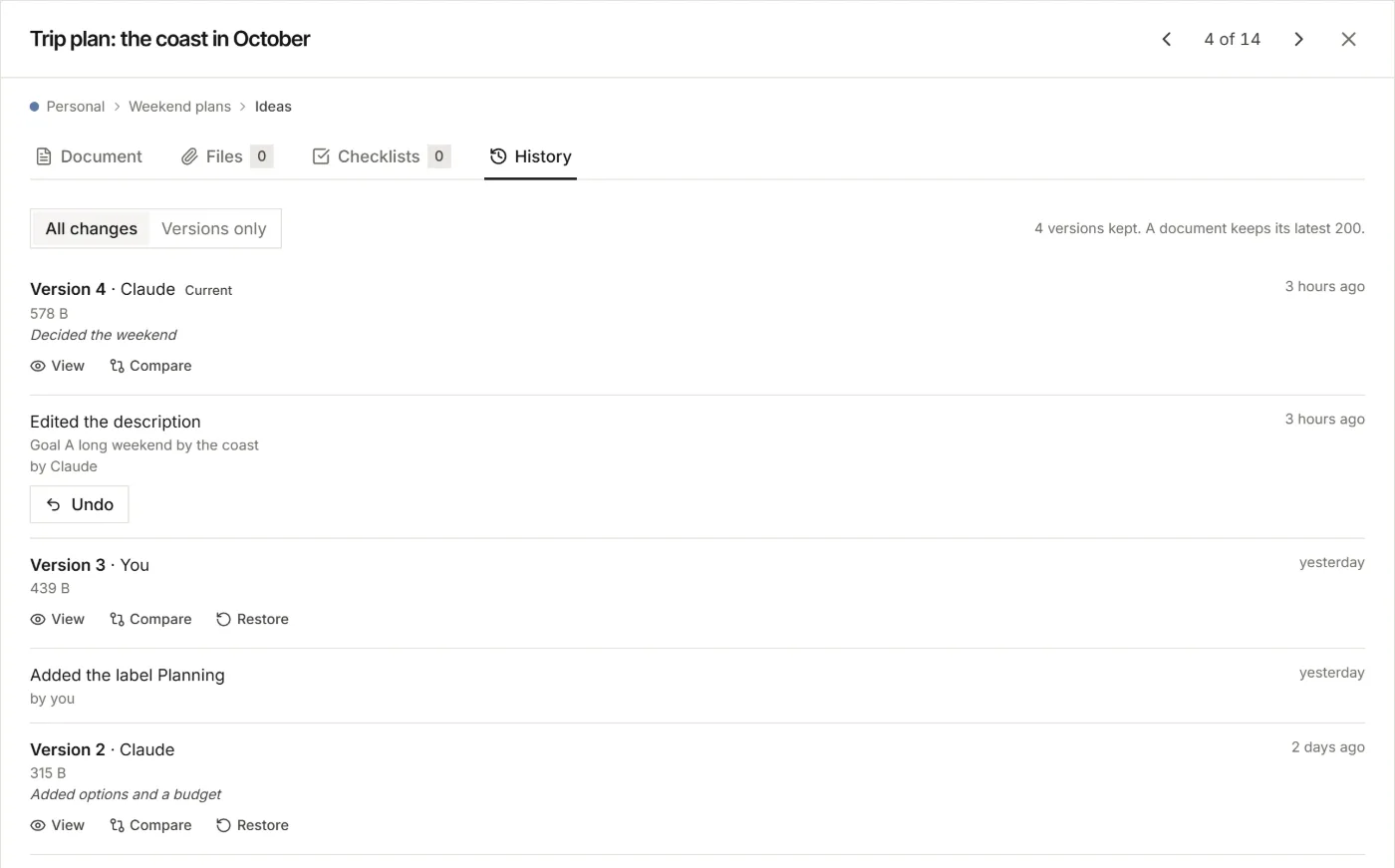
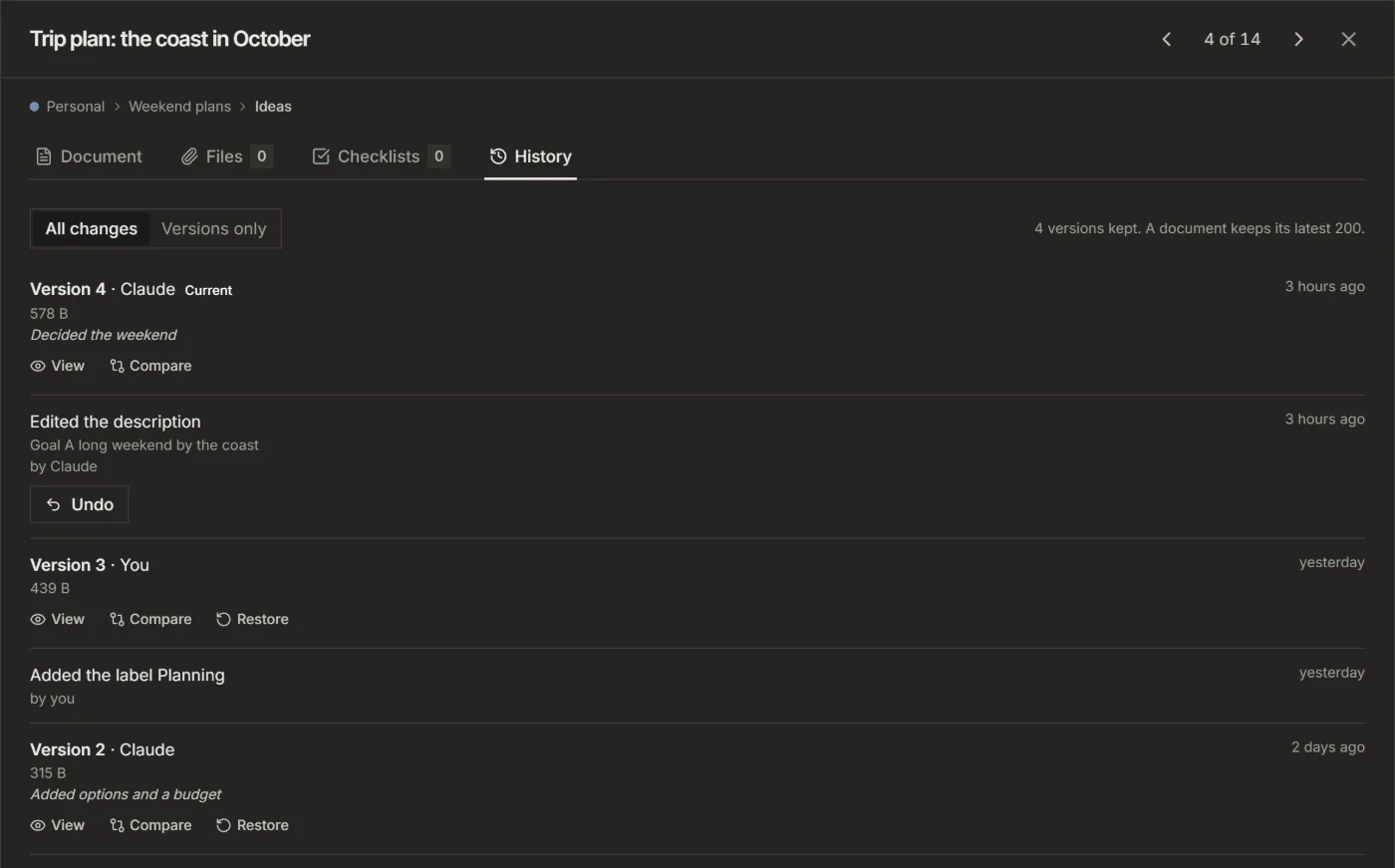
- Open the document, choose Edit, then the History tab.
- View shows an old version; Compare shows what changed between two.
- Restore brings an old version back. It is saved as a new version, so nothing is lost.
A document keeps its latest 200 versions. Versions only hides the other changes.
Let others comment
- Invite a guest with Comment to the board, and that guest can comment on passages and resolve comments, without changing the text. See Invite a guest to one board.
- To share it outside Listspace, choose More, then Print or save as PDF or Word (.docx).
Good to know
- Files take comments too: open an image or a PDF in the file viewer to comment on a spot or a passage. See Files and images.
- On a wide screen, read mode shows a table of contents from the headings when there are three or more.
For your AI, this guide as markdown: listspace.app/guides/write-a-document-and-collect-comments.md