Record decisions your AI works from
Tell the board, and your AI, what still holds: decide once, change it on the record, note how it went.
A board collects notes, ideas and old plans, and to your AI they all look equally true. A decision tells it what still holds. You decide; your AI only proposes.
1. Check that decisions are on
Decisions start on for a new account, and the welcome after sign-up asks whether your AI should keep to what you decided. To check or change it later:
- For every new board: open Settings, then Your AI. Decisions on new boards sets whether the boards you make next start with decisions on.
- For a board you already have: open the board's ⋯ menu and choose Board settings. Decisions shows On or Off, and one click switches it.
2. Mark what you decided
- Open the item and choose More at the bottom of its window, then Mark as decision. The title is the decision; the text below it is the context.
- Choose Add a reason under the decision, type why, and save.
Picked the wrong item? Choose Undo in the message that shows.
3. Accept what your AI proposes
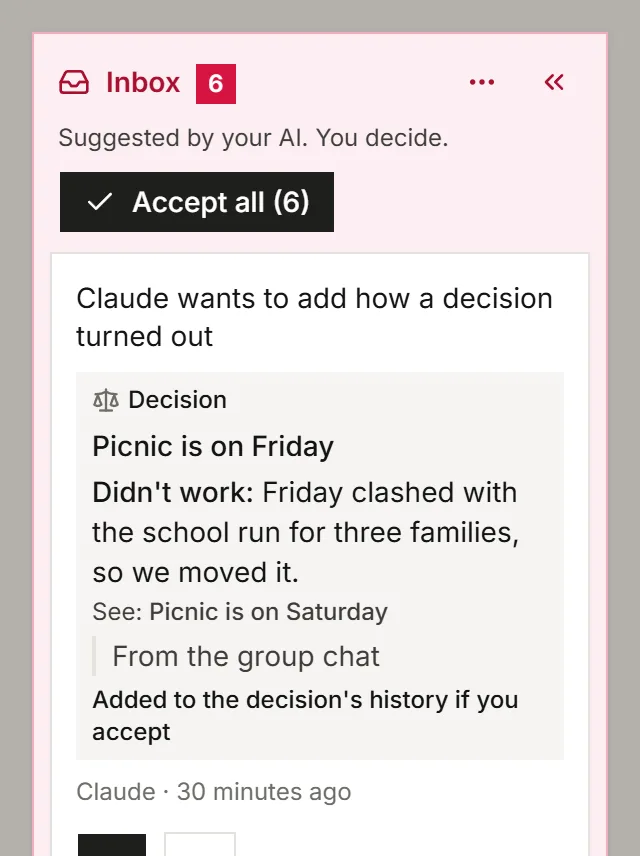
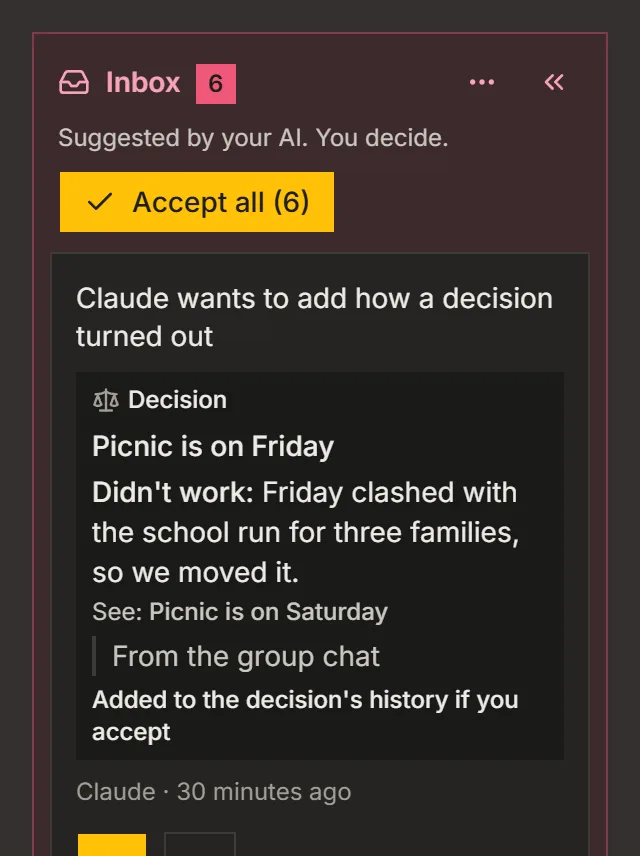
When you pick an option or say yes to something in a chat, your AI proposes it as a decision. The proposal waits in the board's Inbox:
- Accept confirms it in one step.
- Reject changes nothing.
- Not a decision keeps the item as a plain item, and your AI learns it was not a decision.
When a proposal would replace a decision you already have, the Inbox says Replaces: with the old one. Replace confirms the new one, Keep both confirms both, and Reject keeps the old one.
4. Change a decision on the record
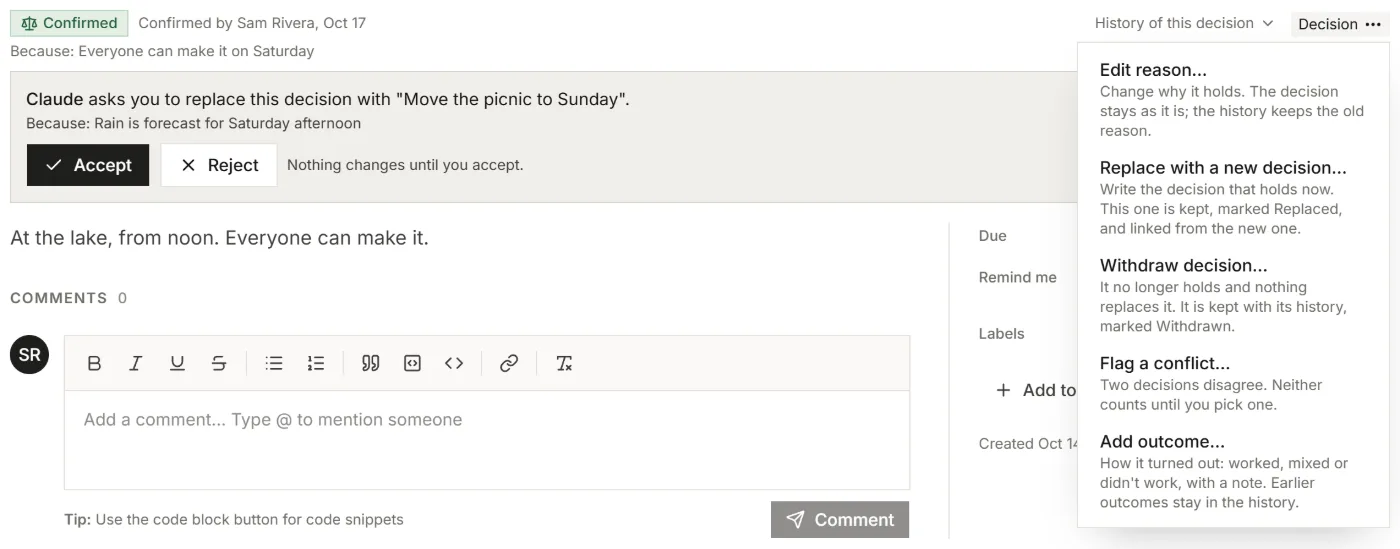
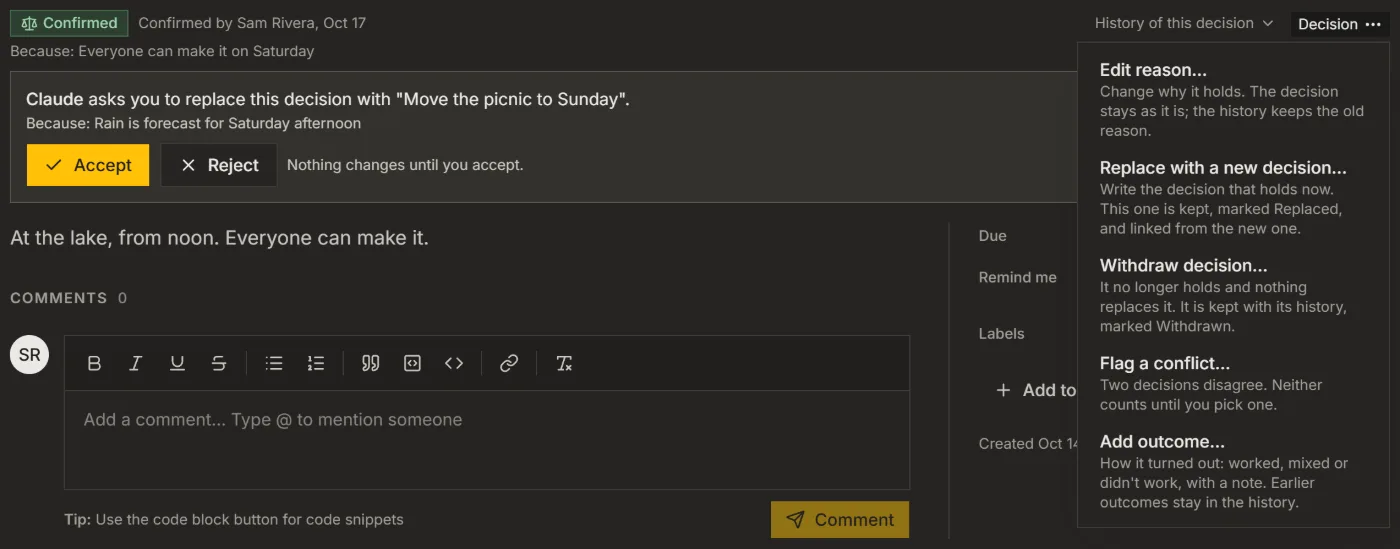
A confirmed decision is never erased. Open it and choose Decision at the top:
- Replace with a new decision...: type what holds now. The old one is marked Replaced and links to the new one.
- Withdraw decision...: say why. It stops counting, and nothing takes its place.
- Edit reason...: change why it holds. The history keeps the old reason.
History of this decision shows every change: who confirmed it, who replaced it, and why.
5. Add how it turned out
Some time later you know how a decision played out.
- Open the decision and choose Decision, then Add outcome....
- Pick Worked, Mixed or Didn't work and say what happened.
- Link items that show it, if you like, and choose Add outcome.
Your AI reads the latest outcome with the decision. It can propose an outcome too, which waits in the Inbox like any other proposal.
6. Check what is still true
- Open the board's ⋯ menu and choose Tidy up....
- Under Still true?, see the decisions with no change and no confirmation in 180 days.
- Choose Still true to confirm one again, or Withdraw... to take it back.
Only a person can confirm a decision again, never your AI.
Good to know
- Have a long plan or meeting notes? Ask your AI to "save the decisions in this plan". Each decision comes on its own to the Inbox, and Accept all takes them in one go.
- In Claude Code, Claude can ask you to confirm a decision on its own screen, without going to the Inbox.
For your AI, this guide as markdown: listspace.app/guides/record-decisions-your-ai-works-from.md