A CRM your AI keeps up to date
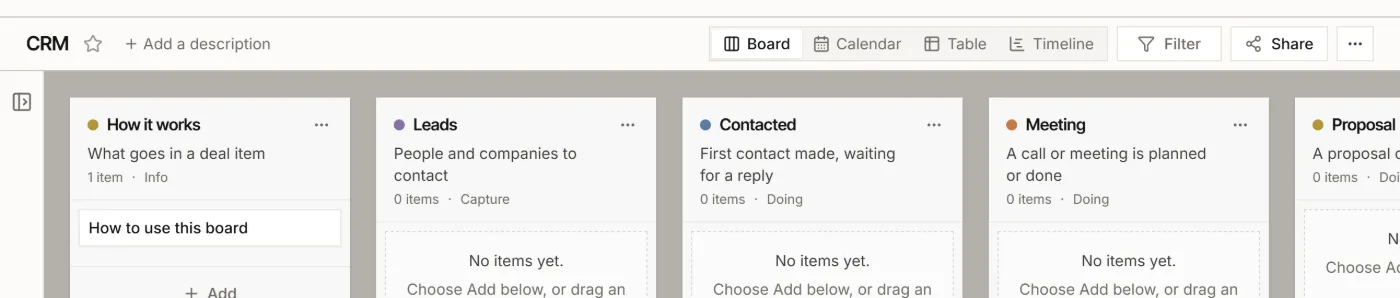
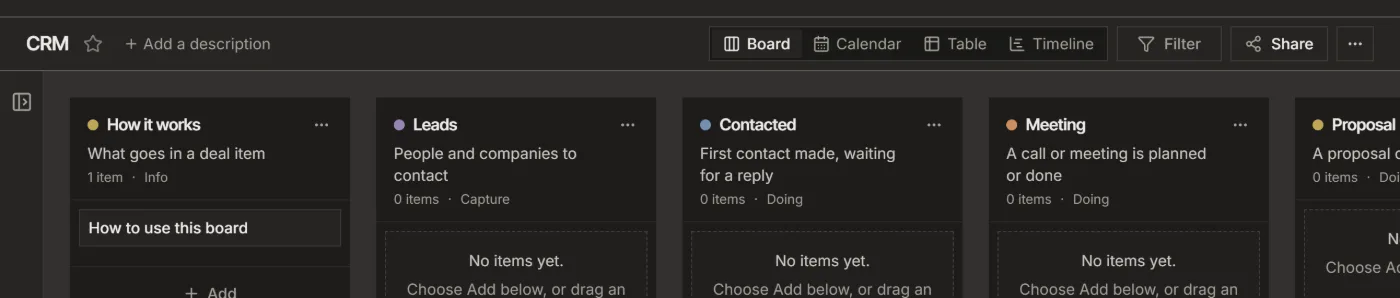
A deals board from the CRM template, with fields your AI fills in and you approve.
One item per deal, moved from Leads to Won or Lost. You tell your AI about a call; it logs it on the deal, updates the next step and fills in the fields. Changes you want to see first wait in your Inbox.
1. Start from the CRM template
- Choose Create in the top bar, then Browse templates.
- Pick CRM and choose Create board.
The board gets the lists Leads, Contacted, Meeting, Proposal, Won and Lost, the labels Hot, Follow up and Referral, and three fields: Stage, Value (in EUR) and Contact email. Its instructions tell your AI to keep the board current and to ask before it moves a deal to Won or Lost.
2. Tell your AI how to fill a field
- On the board, open the ⋯ menu, then Board settings, and next to Fields choose Edit.
- In a field's ... menu, choose Fill instructions for agents and write what to do, for example
Set from the latest call notes. The field now shows Agents fill.
3. Feed it as you work
- Tell your AI what happened, for example
Add a lead to my CRM: Anna at Northwind wants a new website, or paste your call notes. - Ask it to fill the board's fields. It finds the items where a field with instructions is empty or out of date, and sets the values from your instructions.
4. Approve what changed
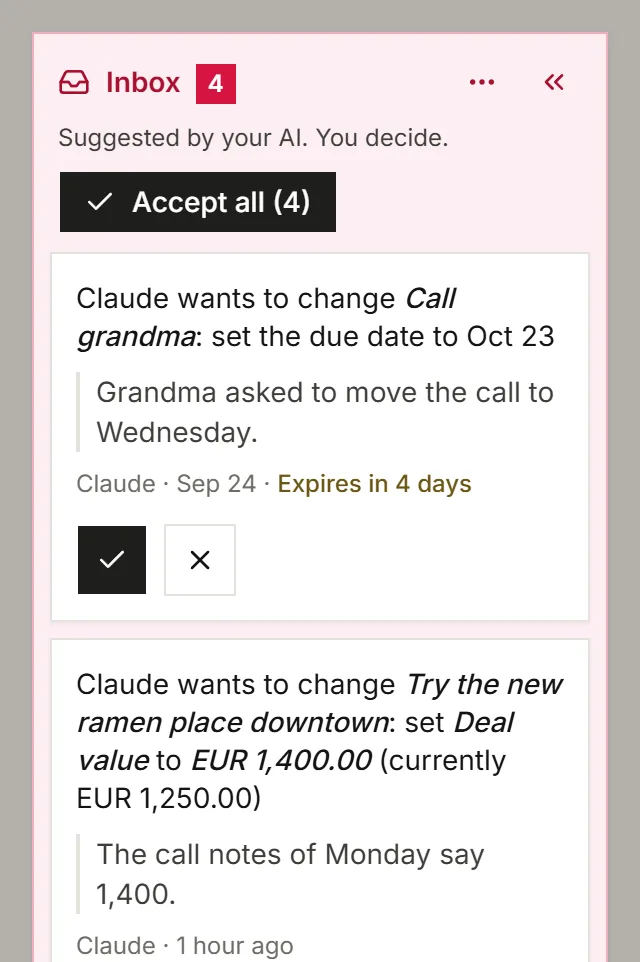
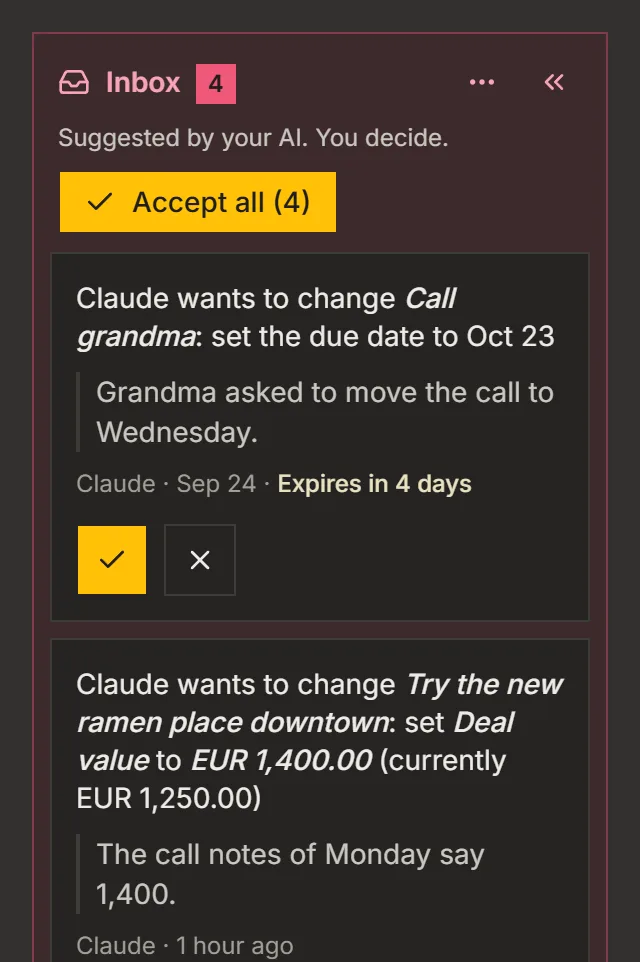
- Below agent access level 4, Act, each new value waits in the board's Inbox, next to the one it replaces.
- Click Accept or Reject. At Act and above, the values apply right away. On the item, a small robot mark shows which values an AI set.
Good to know
- A board has up to 3 fields on Free and 50 on Pro, so the template works on every plan.
- Listspace has no AI of its own: the AI you connected does the work.
For your AI, this guide as markdown: listspace.app/guides/a-crm-your-ai-keeps-up-to-date.md