Break big work into sub-items
Items inside an item, each with its own date and done tick, for work too big for one line.
A checklist line is a step you tick off. A sub-item is an item inside another item: it has its own dates, done tick, description, labels and fields, and its own bar on the timeline. Use one when a step needs more than a tick.
1. Add sub-items
- Open the item and choose Add to item, then Sub-item.
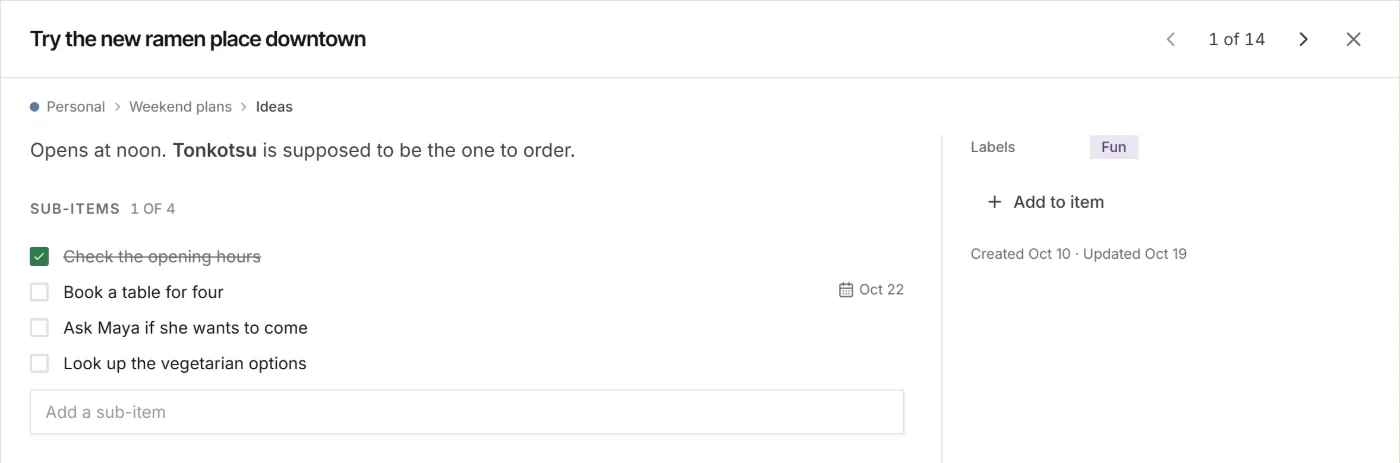
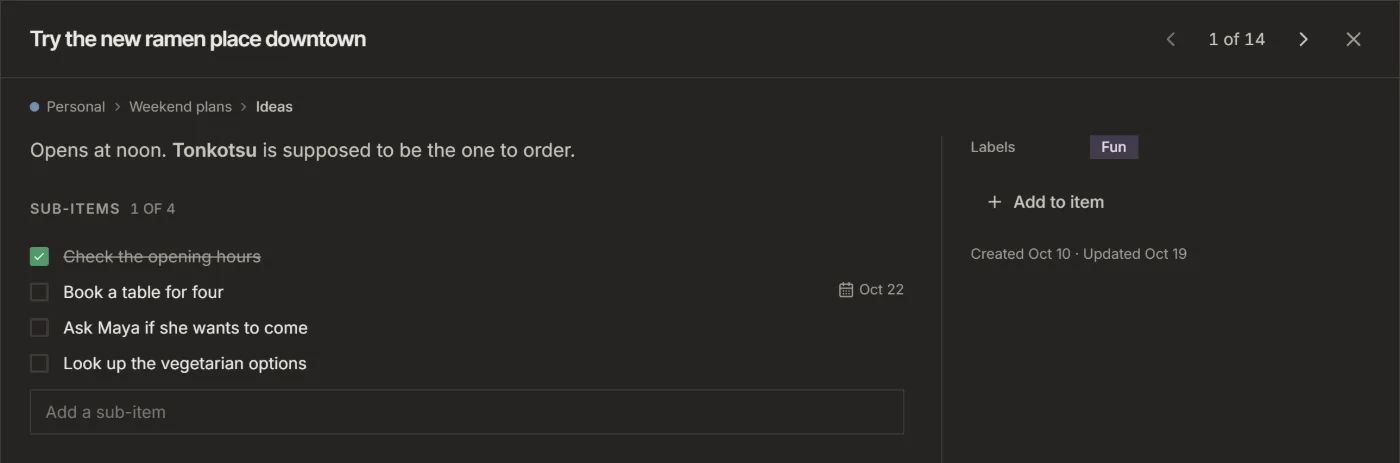
- Type in Add a sub-item and press Enter. The box stays open for the next one. Later, Add sub-item under the list opens it again.
- Tick a sub-item when it is done. The heading counts them, such as 1 of 4.
2. Give a sub-item its details
- Click a sub-item's title. It opens in the same window, like any item.
- Add a due date, a description or labels, as you would on an item.
- Choose Sub-item of at the top to go back to the parent.
3. See them in each view
- Board: sub-items stay inside their parent, and the parent shows a small count such as 2/5.
- Table: sub-items sit indented under their parent. Click the arrow next to the parent to fold them away.
- Calendar: sub-items with dates show like any item.
- Timeline: sub-items sit under their parent. A parent without dates of its own gets a thin bar from the first start to the last due date of its sub-items.
4. Move items in and out
- To put an item under another one, open it, choose More, then Make it a sub-item of..., and pick the parent.
- To make a sub-item an item of its own again, choose More, then Turn into an item.
Moving, copying or archiving a parent takes its sub-items along.
Good to know
- Sub-items go one level deep: a sub-item has no sub-items of its own.
- A sub-item is always on the same board as its parent.
- Subtasks in a CSV from Asana, Jira or ClickUp come in as sub-items. See Move from Trello, Notion, Asana or Jira.
- Ask your AI to "break this item into sub-items". It can make them, and move them under another parent.
For your AI, this guide as markdown: listspace.app/guides/break-big-work-into-sub-items.md