Export a board or an item
Your data is yours: a board as Markdown, CSV or JSON, an item as PDF or Word, a public board as text.
You can download your work at any time, as often as you like. The files are made in your browser and named after the board and the date.
1. Export one board
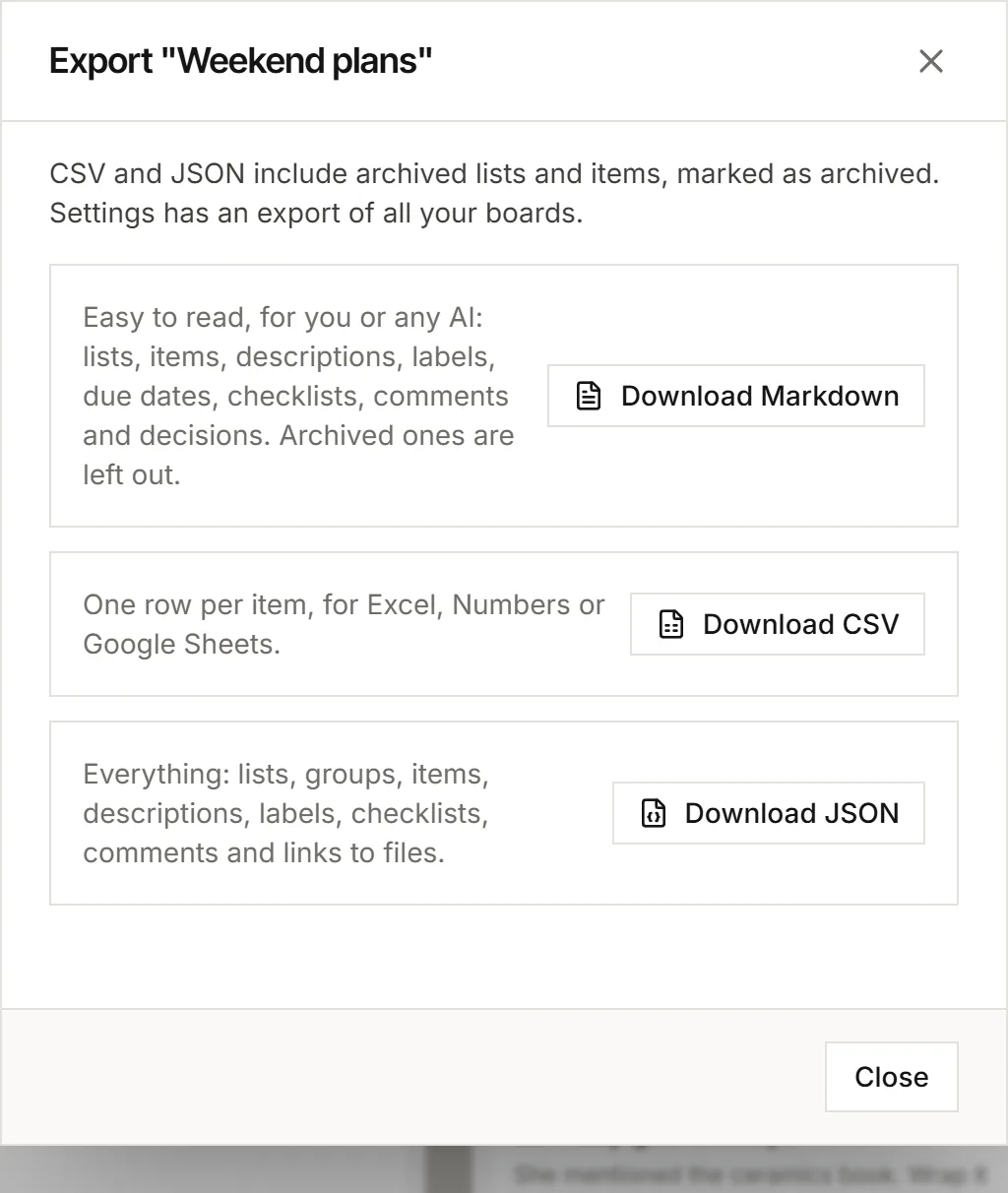
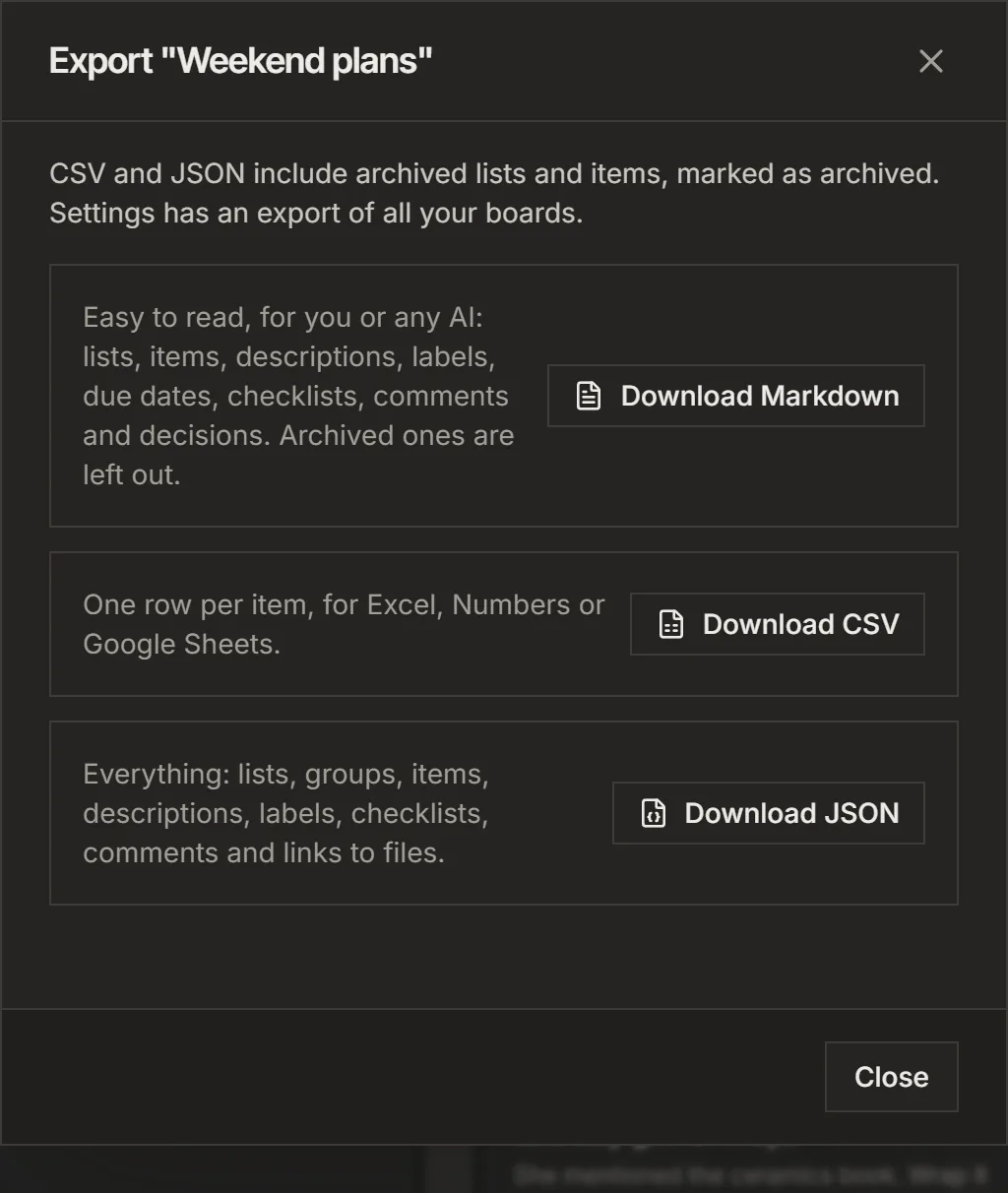
- Open the board's ⋯ menu (Board actions) and choose Export board....
- Choose Download Markdown for one plain text file that you or any AI can read, with lists, items, comments and decisions.
- Or choose Download CSV for one row per item, for Excel, Numbers or Google Sheets.
- Or choose Download JSON for everything, enough to rebuild the board.
CSV and JSON include archived lists and items, marked as archived. Markdown leaves them out.
2. Export all your boards
- Open Settings, then Export.
- Download every board you own, archived ones included.
3. Export one item or document
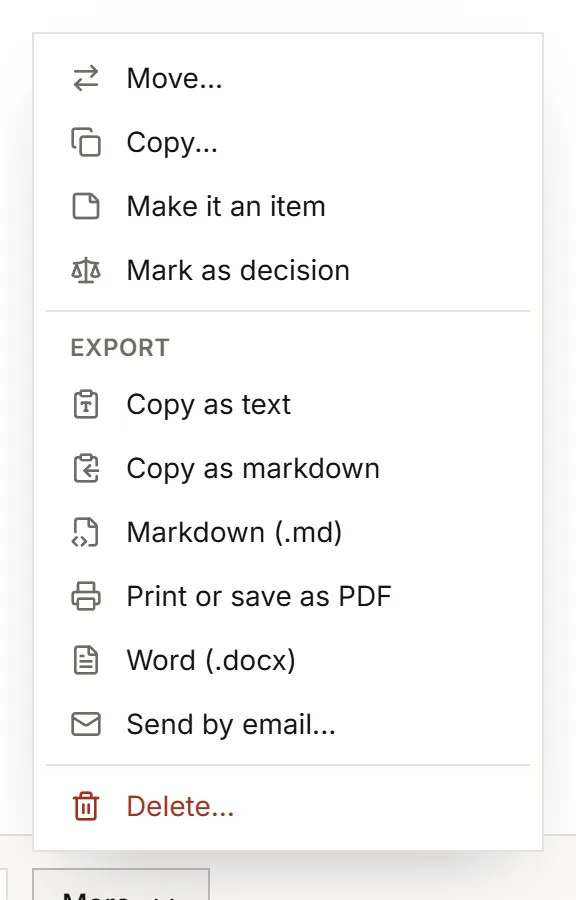
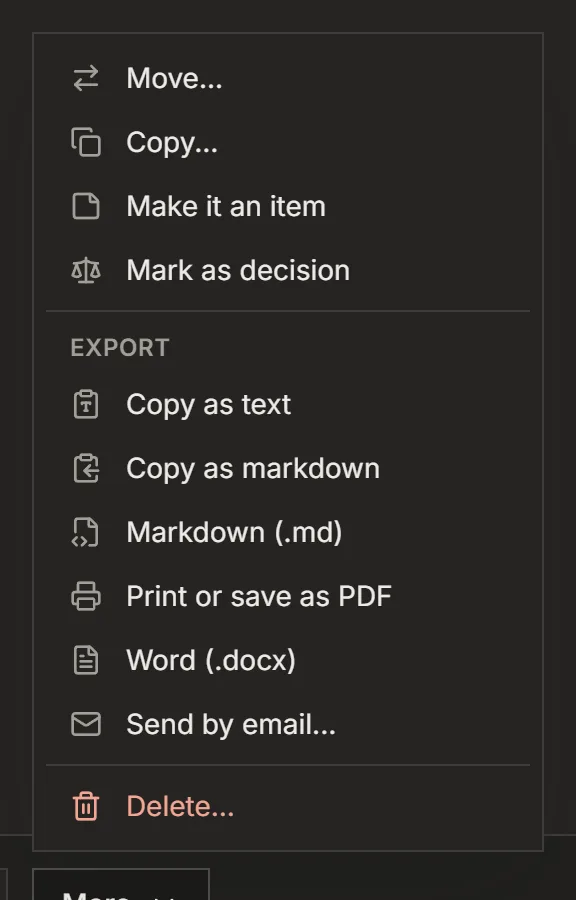
- Open the item and choose More at the bottom of its window.
- Under Export, pick the format you need from the list below.
- Copy as text or Copy as markdown: ready to paste somewhere else.
- Markdown (.md): the file, exactly as your AI reads it.
- Print or save as PDF: a clean page. Choose Save as PDF in your browser's print window to keep a file.
- Word (.docx): opens in Word, Pages and Google Docs.
- Send by email...: to yourself, or to one other person with a short note.
Diagrams print as pictures and go into the Word file as pictures. See Draw a diagram with Mermaid.
4. Give a public board to any AI as text
A board with a public link has a plain text version too, for an AI that reads the link, such as ChatGPT or Claude.
- Open the board, choose Share and turn on Public link.
- Copy the link and add .md at the end, for example listspace.app/@you/board-name.md.
- Paste that address into the chat.
A board with a password has no text version.
Good to know
- An export holds links to your files, not the files themselves. To download the files of one item, open its Files tab and choose Download all as zip.
- Your AI can get the same files itself: the JSON of a board and the Markdown of an item.
For your AI, this guide as markdown: listspace.app/guides/export-a-board-or-an-item.md