Run a client project with your AI and share it read-only
Your AI keeps the project board current; the client follows along on a read-only link.
The client wants to know where things stand; you do not want to write status emails. Keep the project on a board your AI updates while you work, and give the client a link that always shows the current state.
1. Start the board
- Choose Create in the top bar, then Browse templates, and pick Client project.
- Choose Create board. It has the lists Brief, Ideas and notes, To do, Doing, In review with the client and Done, and the labels Waiting on client and Billable.
Its instructions tell your AI to keep internal notes, prices that are not agreed and other clients' names off the board, because the board may be shared.
2. Let your AI keep it current
- Connect your AI once, see the setup page.
- Ask it to work from the board, for example
Read my Client project board and add what we agreed in this call. It adds items, moves them as the work moves, and comments on what it did.
3. Share it read-only
- On the board, click Share.
- Turn on Public link and click Copy. Send the link to the client.
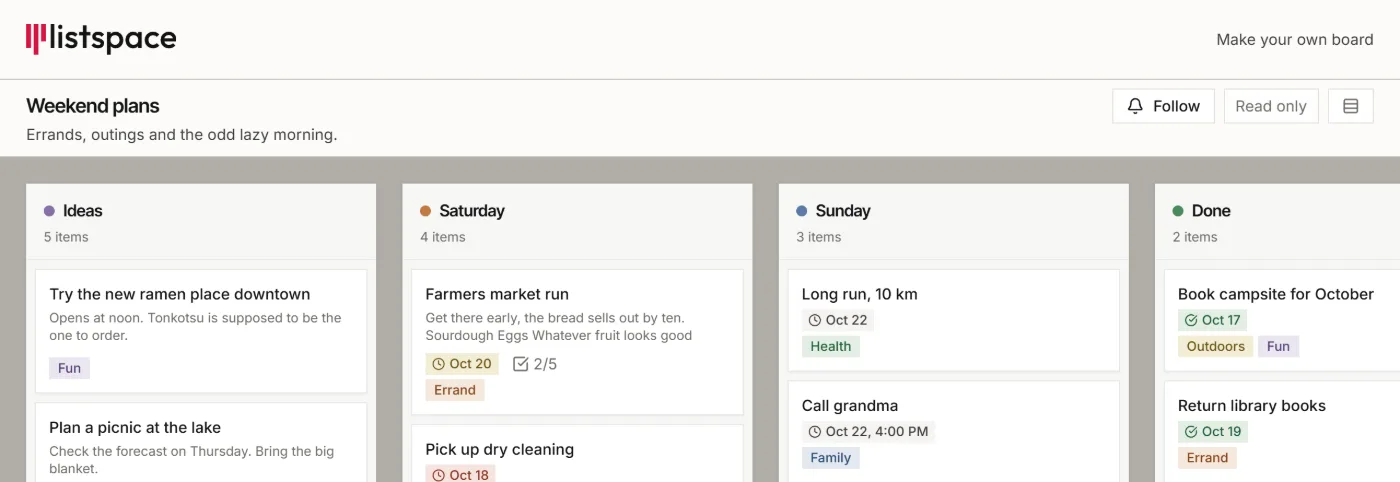
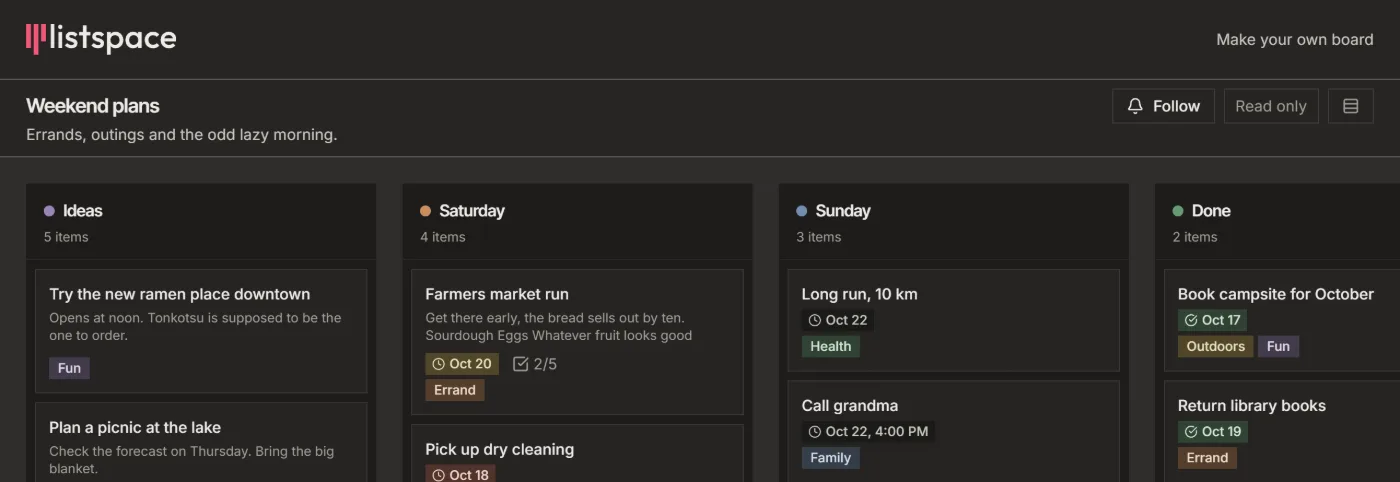
The client needs no account. The page shows the lists, items with their descriptions, labels, checklists, sub-items and start and due dates, marked Read only. Archived items stay hidden. Under Link settings you can add a password, choose Show comments (the text and dates, never who wrote them) and Show images inside items.
Or invite the client as a guest
- In Share, under Guests, type the client's email address, pick a Role and click Invite.
- The client signs up for a free account and sees the board, with a banner saying who owns it.
A guest with the Comment role can comment and ask questions. On Free a board has 1 guest, with View or Comment; Pro allows up to 5 guests with any role. Access until ends access on a date you choose.
For your AI, this guide as markdown: listspace.app/guides/run-a-client-project-with-your-ai.md