See your board as a table or a calendar
Four views of the same items, and your due dates in the calendar you already use.
Every board shows the same items in four views. Switching changes how you see them, never the items themselves.
1. Pick a view
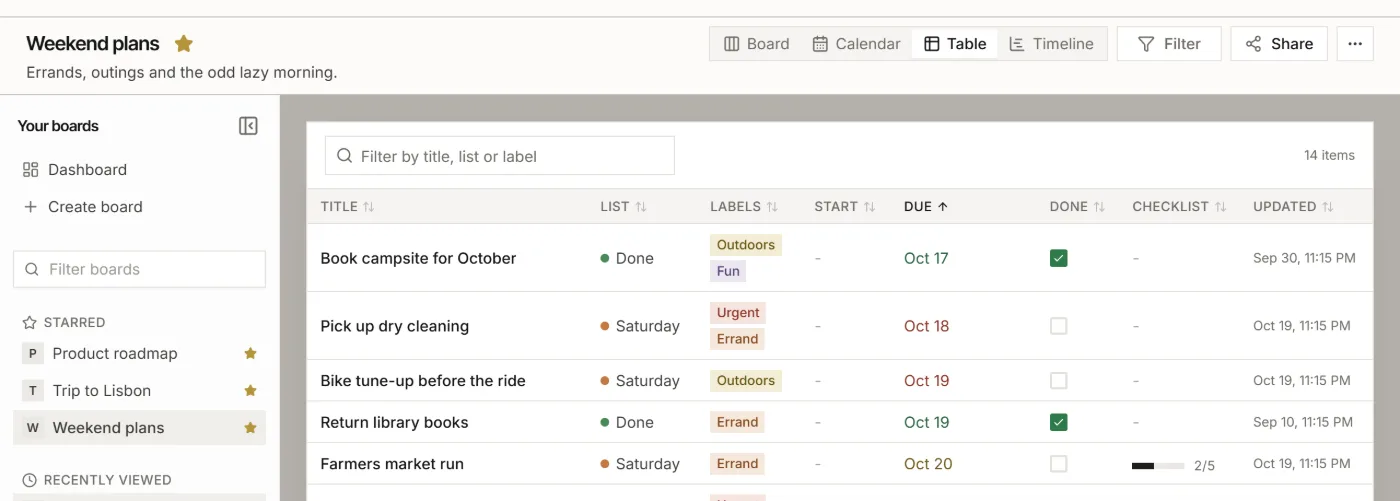
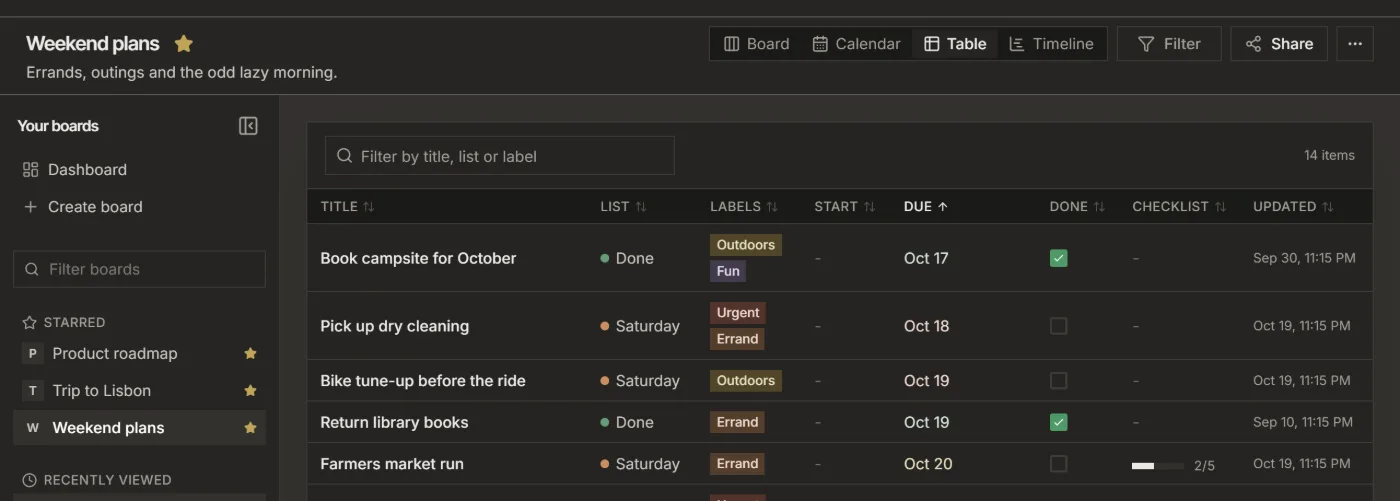
The views sit at the top right of the board: Board, Calendar, Table and Timeline.
- Board shows the lists side by side. Compact items in the board's ⋯ menu shows each item as one line.
- Table shows all items in one list. Click a column heading, such as Due or List, to sort by it, and type in Filter by title, list or label to narrow it down. Tick an item's Done box to mark it done without opening it.
- Calendar shows items by due date. Drag an item to another day to change its date.
- Timeline shows items as bars from start date to due date. See Plan a timeline and print it as a poster.
Filter next to the views works in every view, for example to show only the items with one label.
2. Put your due dates in your own calendar
A private calendar link shows your items with a due date in the calendar you already use. You add it once and it keeps itself up to date. No Google or Microsoft sign-in is needed.
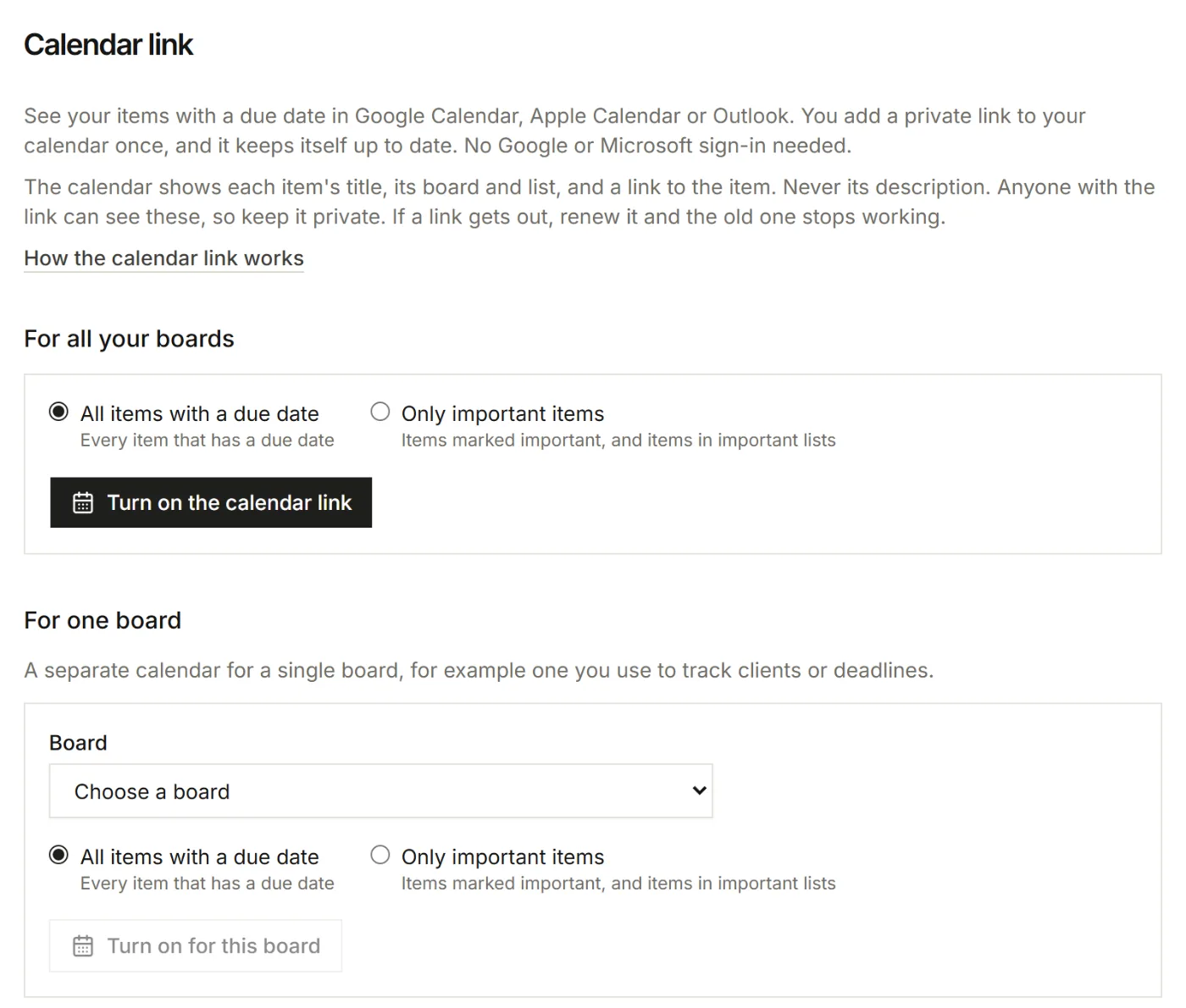
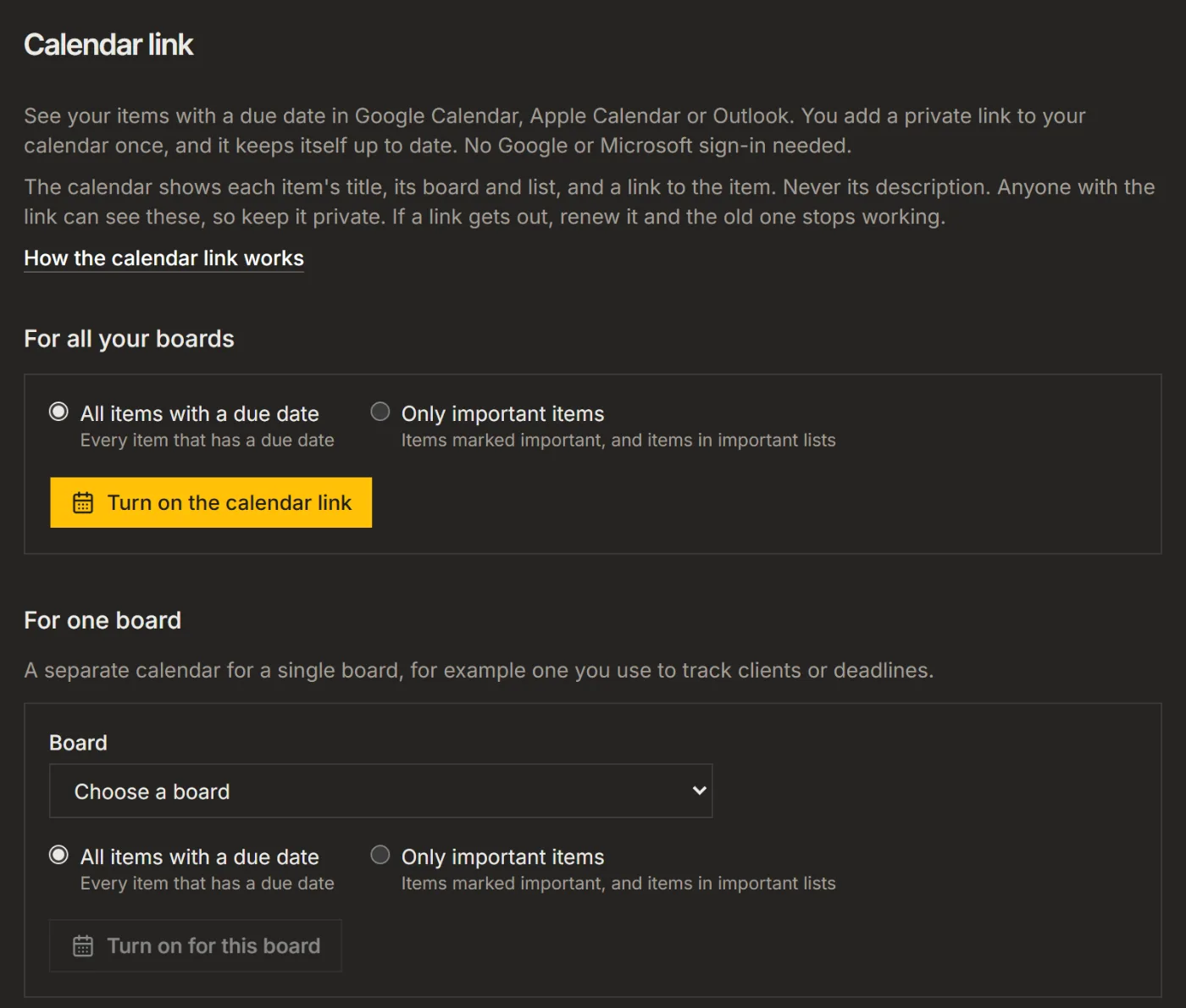
- Open Settings, then Calendar link.
- Choose All items with a due date or Only important items.
- Click Turn on the calendar link for all your boards, or pick a board under For one board and click Turn on for this board.
- Copy the link. It is shown only once.
3. Add the link to your calendar
- Google Calendar: on a computer, click + next to Other calendars, choose From URL and paste the link.
- Apple Calendar: on a Mac, choose File, then New Calendar Subscription. On an iPhone or iPad, tap Open in Apple Calendar in Settings on that device.
- Outlook: choose Add calendar, then Subscribe from web, and paste the link.
Calendar apps check the link on their own schedule, so a change can take a few hours to show. Google can take up to a day.
Good to know
- The calendar shows each item's title, its board and list, and a link to the item, never its description.
- Anyone with the link can see these items. If it gets out, click Renew link and the old one stops working at once.
- Mark an item important to put it in your calendar with Only important items, and in For you.
For your AI, this guide as markdown: listspace.app/guides/see-your-board-as-a-table-or-calendar.md