Your keyboard: shortcuts and the command palette
Search, jump and act without the mouse: Ctrl+K, > for commands, and the shortcuts worth knowing.
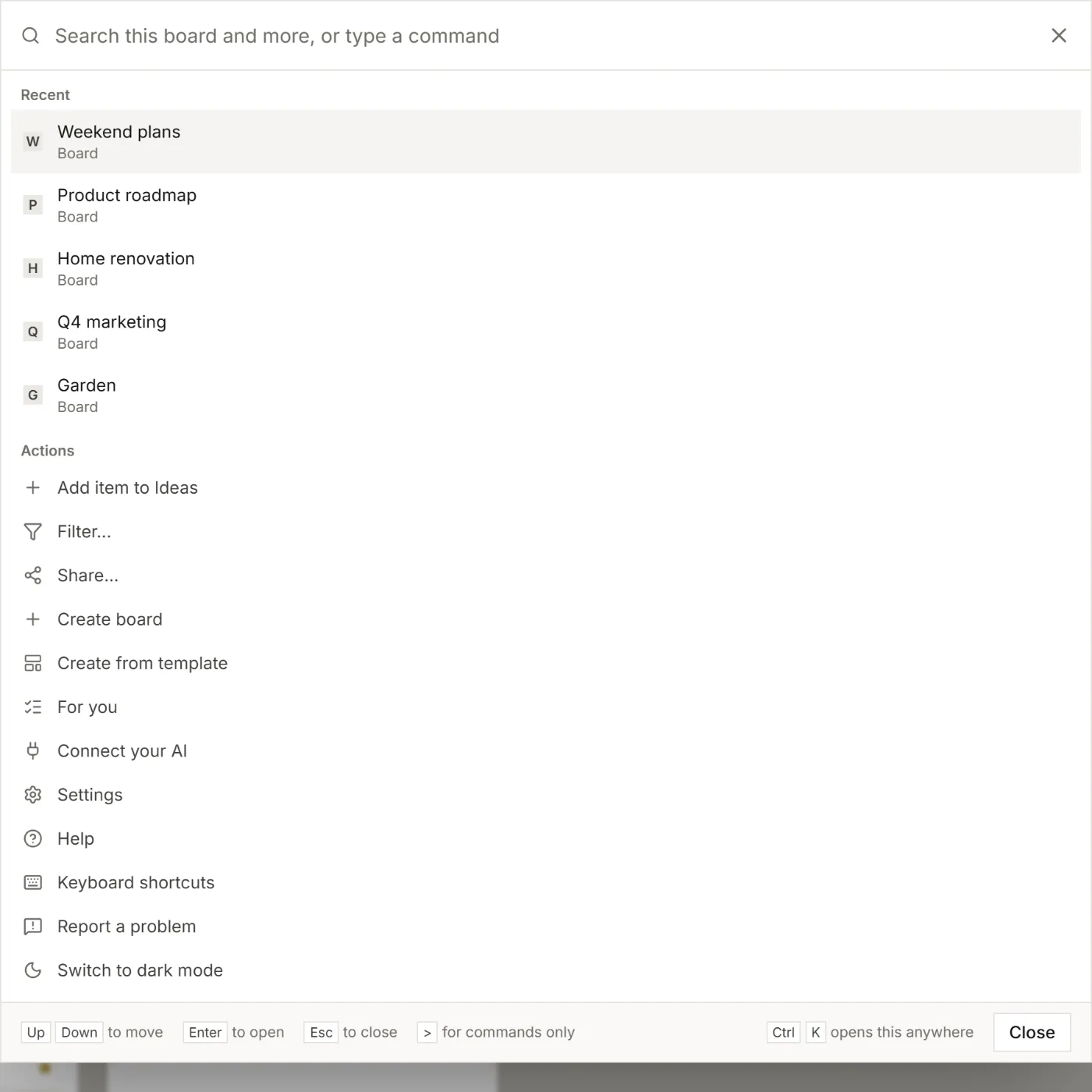
One box does both: search everything, or run a command. Open it with the keyboard from anywhere in the app.
1. Open search and commands
- Press Ctrl+K, or Cmd+K on a Mac. When you are not typing and no window is open,
/opens it too. - Type to search your boards, lists and items. On a board it searches that board first.
- Move with the arrow keys, press Enter to open, Esc to close.
With nothing typed, it shows your recent commands first, then what you opened lately.
2. Run a command
- Type
>first to see commands only. - Type part of a command. Letters in order are enough:
mkdnfinds Mark done,swtfinds Switch view: Table. - Press Enter.
Commands follow what you are looking at:
- With an item open: Mark done, Move to..., Add label..., Copy link.
- On a board: add an item to a list, Filter..., Share..., and Switch view to Board, Table, Calendar or Timeline.
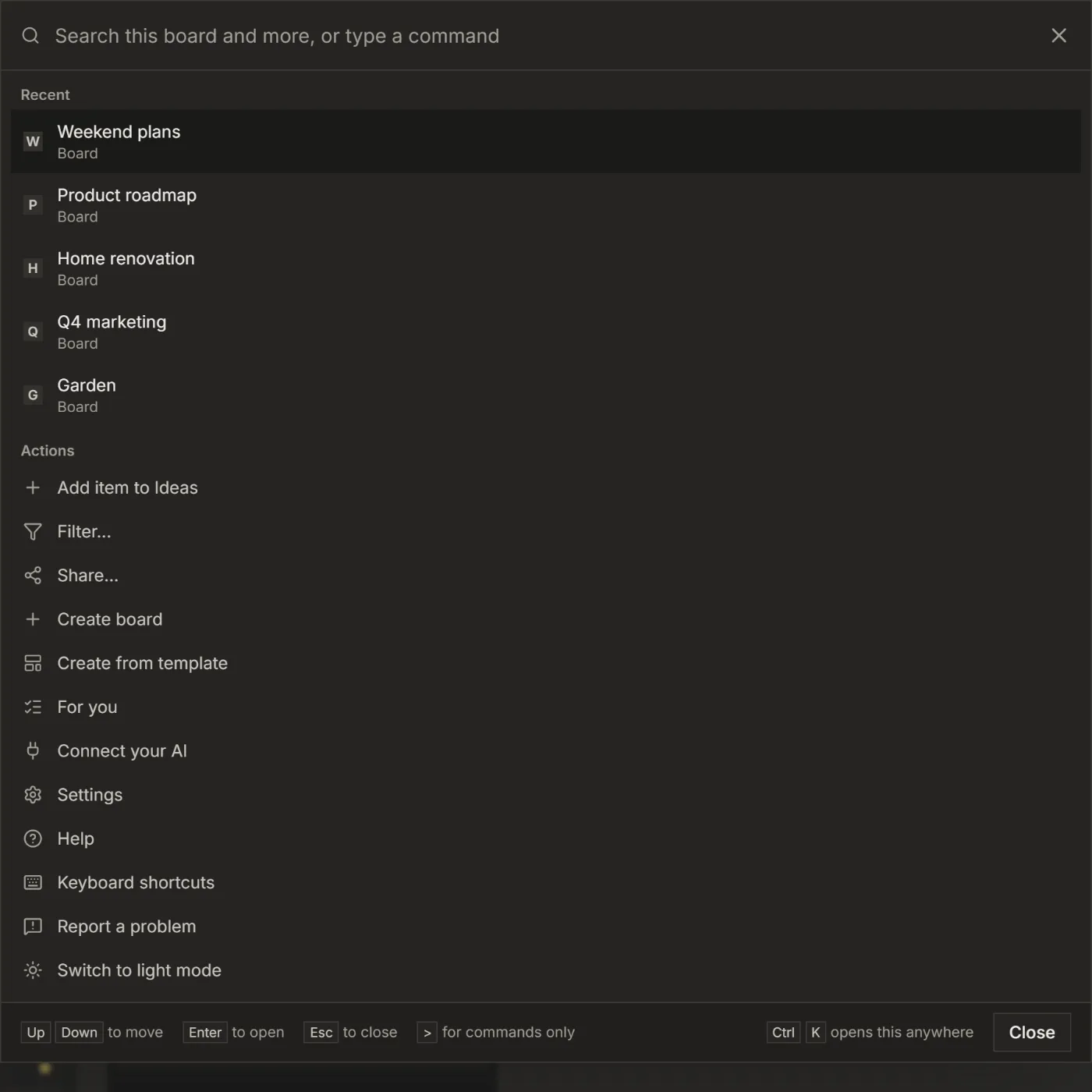
- Anywhere: Create board, Create from template, For you, Connect your AI, Settings, Keyboard shortcuts and switching to dark or light mode.
3. Shortcuts worth knowing
- Alt+Shift+A: archive the open item.
- Shift+Click: select every item in the same list between the last one you selected and this one. Alt+A jumps to the bar for selected items, Esc clears the selection.
- Ctrl+B, Ctrl+I, Ctrl+U in a description: bold, italic, underline. Ctrl+K with text selected adds a link.
The full list is in the app: open the Help menu, then Keyboard shortcuts, or run the command of the same name.
For your AI, this guide as markdown: listspace.app/guides/keyboard-shortcuts-and-the-command-palette.md